Compositor
The Compositor is Fuser's built-in visual editor for combining images, video, text, shapes, vector art, 3D objects, and more into a single layered composition. Think of it as a Photoshop or Figma-like environment embedded directly in your flow — any content you compose can flow downstream to AI nodes for inference, further editing, or export.
Opening the Compositor
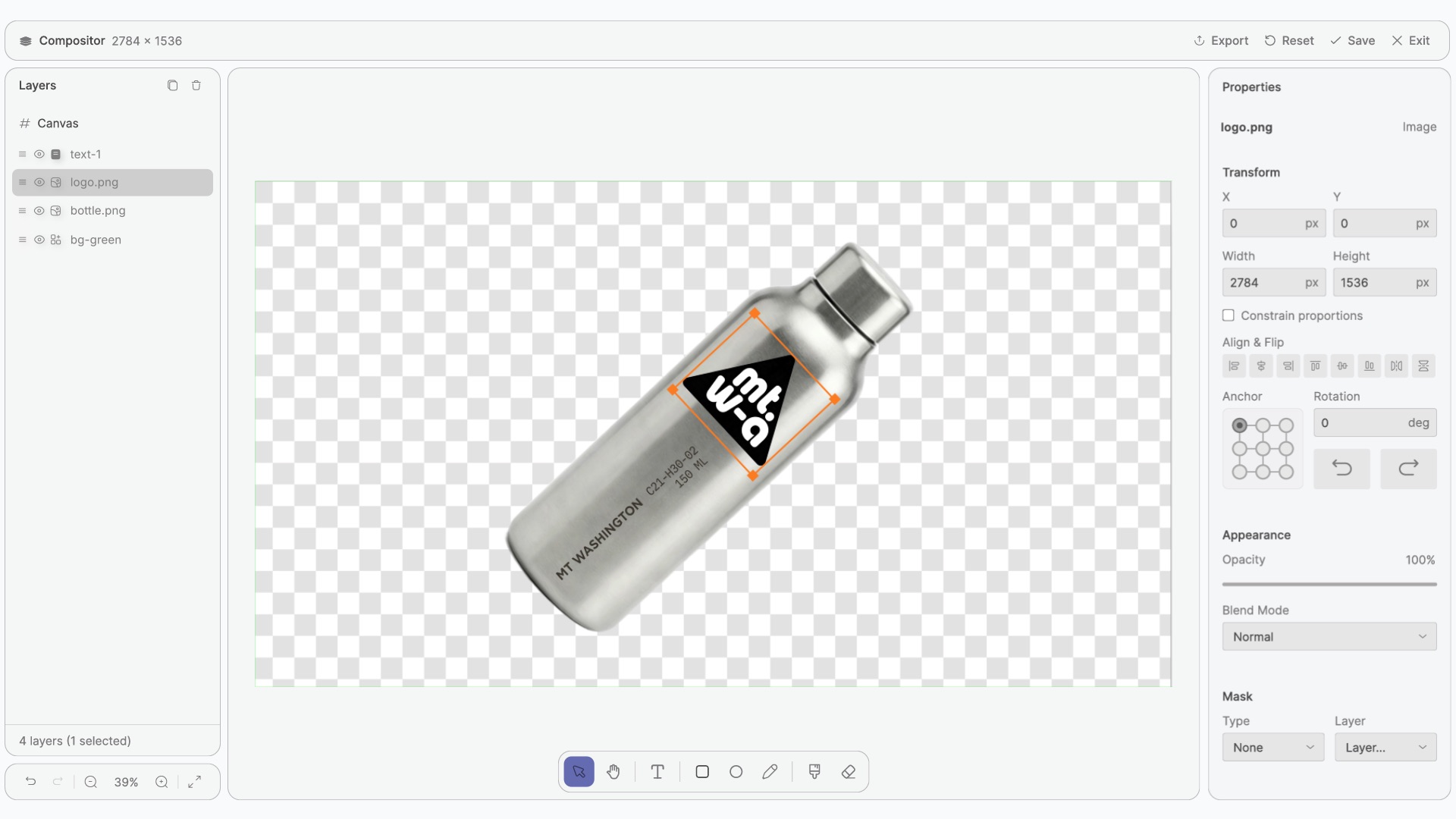
To open the Compositor, click the Edit button on the node. This opens a full-screen editing environment where you can build your composition.
When you're done, click Save & Exit to return to the flow canvas. Your composition is saved as part of the node and its output is immediately available to downstream nodes.
The Compositor editor is currently available on desktop and tablet browsers only.
Editor Layout
The Compositor editor is divided into four main areas:
- Toolbar (left) — Tool selection buttons for drawing, painting, and editing.
- Canvas (center) — The main editing surface where you compose layers.
- Layers Panel (right) — Layer list with drag-to-reorder, visibility, and lock controls.
- Properties Panel (right) — Context-sensitive settings for the selected layer or canvas.
Tools

The toolbar provides 8 editing tools, each with a keyboard shortcut:
| Shortcut | Tool | Description |
|---|---|---|
| V | Select | Click to select layers. Drag to move. Use handles to resize and rotate. |
| H | Hand | Pan around the canvas. You can also hold Space to temporarily pan with any tool. |
| R | Rectangle | Draw rectangle layers with fill, stroke, and corner radius. |
| O | Ellipse | Draw ellipse and circle layers. |
| T | Text | Click to create a text layer. Double-click an existing text layer to edit inline. |
| P | Pen | Draw vector paths with bezier curves. Click to add points, drag to create curves. |
| B | Brush | Paint freehand on raster layers with adjustable size, opacity, and hardness. |
| E | Eraser | Erase content on raster layers. |
Layer Types
The Compositor supports a wide variety of layer types. Layers can be created with tools, by connecting input nodes, or by pasting/dropping content into the editor.
| Layer Type | Description |
|---|---|
| Rectangle | Shape with fill color, stroke, and adjustable corner radius. |
| Ellipse | Circle or ellipse shape with fill and stroke. |
| Vector Path | Bezier curves with multiple subpaths, fill, and stroke. Supports smooth, asymmetric, and corner point types. |
| Text | Rich text with Google Fonts, custom fonts, variable font axes, letter spacing, and text alignment. |
| Image | Imported image with crop support. |
| Video | Imported video with crop and loop controls. |
| Raster | Pixel layer created by the brush tool. |
| Solid Color | Flat color fill layer. |
| 3D Mesh | glTF/GLB 3D models with PBR materials (metallic, roughness) and rotation controls. |
| Compositor | A nested reference to another Compositor node's output, enabling compositing chains. |
Working with Layers
Layers Panel
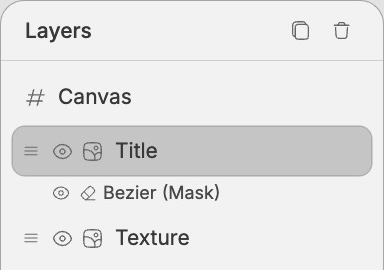
The layers panel on the right side of the editor lists all layers in your composition from top to bottom. You can:
- Reorder layers by dragging them up or down in the list.
- Toggle visibility with the eye icon.
- Lock layers to prevent accidental edits.
- Rename layers by double-clicking the layer name.
Transforming Layers
Select a layer to see its transform handles on the canvas:
- Corner handles — Resize the layer.
- Rotation handle — Rotate the layer.
- Arrow keys — Nudge the selected layer by 1px (hold Shift for 10px, or grid-size if snapping is enabled).
You can also set precise values for position, size, rotation, scale, and anchor point in the Transform section of the properties panel.
Properties
The properties panel updates based on your current selection. Here are the key sections:
Canvas
Set the canvas dimensions, background color, and grid settings. Use the 9-point anchor selector to control how content repositions when you resize.
Transform
Precise controls for position (X/Y), size (W/H), rotation, scale, anchor point, and alignment. Includes flip and rotate buttons.
Appearance
Set layer opacity (0–100%) and blend mode. Available blend modes: Normal, Multiply, Screen, Overlay, Darken, Lighten, Color Dodge, Color Burn, Hard Light, Soft Light, Difference, and Exclusion.
Text
Available when a text layer is selected. Configure:
- Font family — Choose from Google Fonts, system fonts, or upload custom fonts.
- Font size, color, letter spacing, and line height.
- Text alignment — Left, center, or right.
- Text box mode — Auto-width, auto-height, or fixed size.
- Variable font axes — If the selected font supports variable axes (e.g., weight, width), adjust them with sliders. Individual axes can be animated for a looping morph effect.
Shape
Available for rectangle, ellipse, and vector layers. Set fill color, stroke color, and stroke width.
3D Mesh
Available for 3D mesh layers. Control the viewport size, 3D rotation (X/Y/Z), and scale.
Masks
Apply alpha or luminance masks to individual layers using another layer as the mask source. You can also set a global alpha mask that applies to the entire scene.
Timeline
Set the scene duration (in seconds) and frames per second for compositions that include video or animation.
Connecting Inputs
The Compositor node has dynamic input sockets that accept content from other nodes in your flow:
- Image nodes — Added as image layers.
- Video nodes — Added as video layers.
- Text nodes — Added as text layers.
- Mesh nodes — Added as 3D mesh layers.
- Other Compositor nodes — Nested as compositor layers (scene-passing).
You can also paste (Cmd/Ctrl+V) or drag and drop media directly into the editor to create new connected nodes automatically.
When you first open an empty Compositor, the canvas size is automatically set to match the dimensions of the first connected image or video input.
Exporting
Click the export button in the toolbar to open the export dialog. Available formats:
| Format | Description |
|---|---|
| PNG | Lossless image of the current frame. |
| JPEG | Lossy image with adjustable quality. |
| WebM | Video export (frame-by-frame rendering). Requires video or animated layers. |
You don't always need to export manually. The Compositor's output socket emits your composition directly — downstream nodes (Image, Video, or other Compositors) can render it immediately without waiting for an export.
Keyboard Shortcuts
| Shortcut | Action |
|---|---|
| V / H / R / O / T / P / B / E | Switch tool (Select, Hand, Rectangle, Ellipse, Text, Pen, Brush, Eraser) |
| Space (hold) | Temporarily pan the canvas |
| Cmd/Ctrl + Z | Undo |
| Cmd/Ctrl + Shift + Z | Redo |
| Cmd/Ctrl + S | Save |
| Cmd/Ctrl + D | Duplicate selected layer |
| Cmd/Ctrl + = / Cmd/Ctrl + - | Zoom in / out |
| Cmd/Ctrl + 0 | Fit canvas to view |
| Delete / Backspace | Delete selected layer |
| Enter | Enter text edit mode (on text layer) or finalize pen path |
| Escape | Exit text edit, finalize pen path, or close compositor |
| Arrow keys | Nudge selected layer (1px, or 10px with Shift) |
What's Next?
- Building Flows — Learn how to connect the Compositor into larger creative workflows.
- Working with Media — Import images, video, and other assets to use in your compositions.
- Sockets & Connections — Understand how nodes connect and pass data.
- Nodes Reference — Browse all available nodes.