Gallery
Discover community recipes, apps, and tools, inspect what they do, and try them in your own projects.
Browse community recipes, apps, and tools in the Gallery. Inspect their previews and details, then try them in your projects.
Open Gallery from the project sidebar. Browsing is public; trying an item in a project requires sign-in.
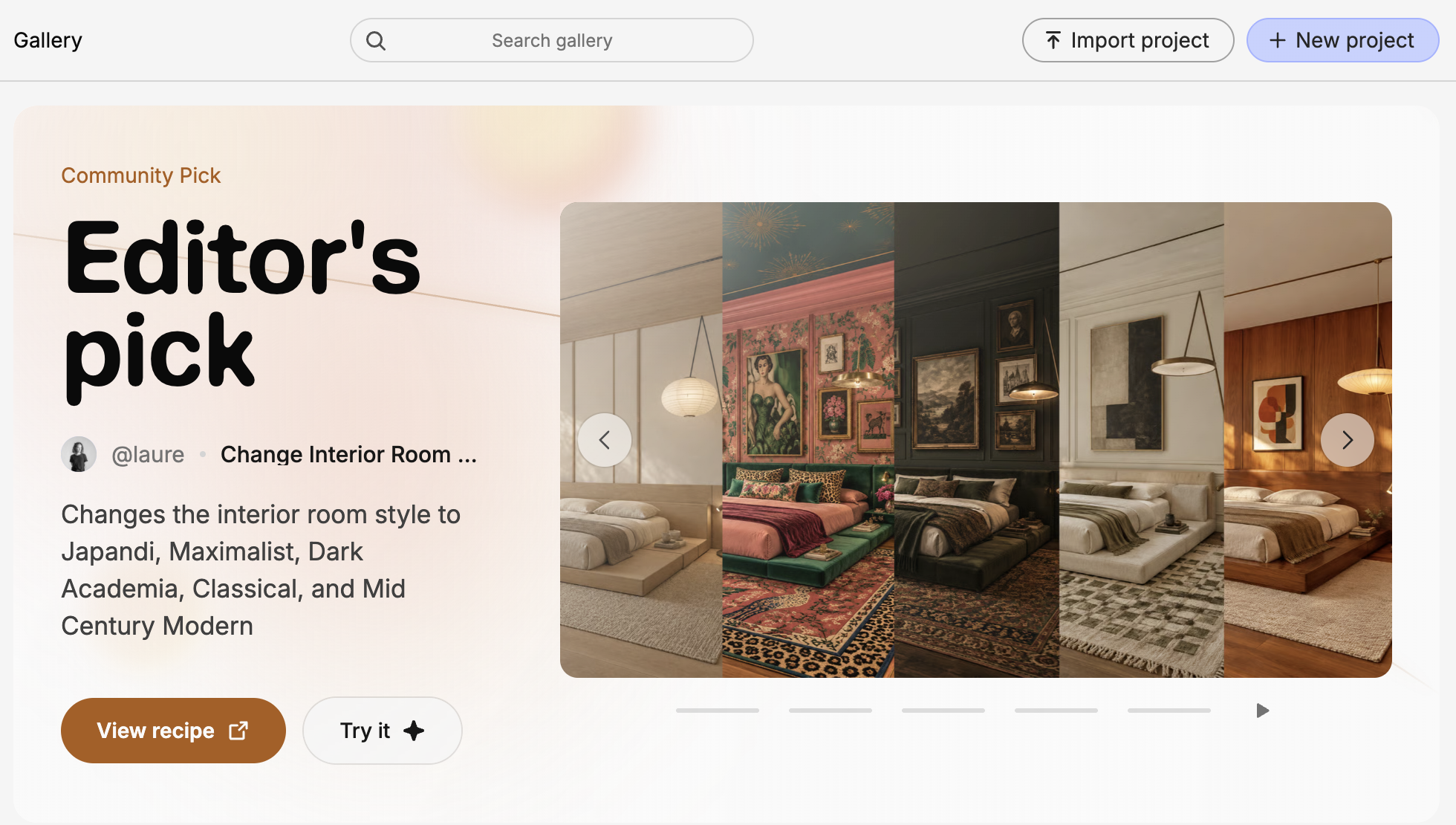
Browse by kind
Featured creations appear first, followed by Latest, Recipes, Apps, and Tools. Latest mixes the newest items; Contexts appears when available.
Click a heading for its full grid, newest first. Creator handles link to public profiles.
| Section | What you'll find |
|---|---|
| Recipes | Reusable flows with chosen inputs and outputs. |
| Apps | Interactive apps you can view or bring into a Fuser project. |
| Tools | Reusable tools you can try in a project. |
Published recipes can appear here; unpublished recipes stay in your library.
Search and narrow the results
Search gallery matches titles, descriptions, and creator names or handles across the gallery, even when you start within a section.
Within a section, filter above the grid:
- Choose an output type, such as Image, Video, Audio, 3D, Text, or Code.
- Choose a category or tag shown for that section.
- Combine output type, category, and tag.
For image recipes, open Recipes and select Image, then a category or tag.

Click an active category or tag to clear it. All clears every filter. Text search still covers the whole gallery, outside these filters.
Inspect and try an item
Hover a card or focus its controls with the keyboard to reveal actions:
| Item | Inspect it | Try it in Fuser |
|---|---|---|
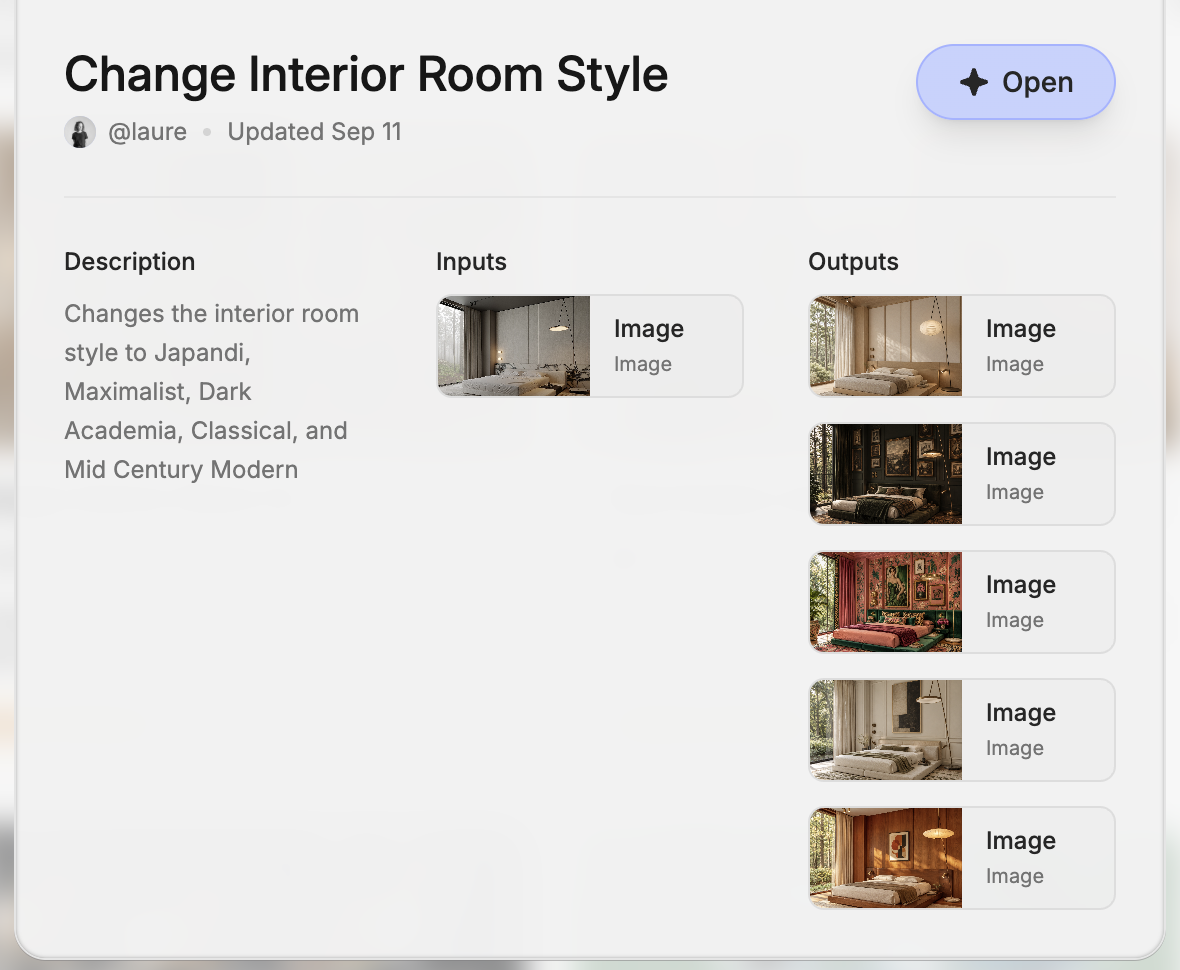
| Recipe | Details shows its description, creator, inputs, and outputs. | Try, or Open in its details, opens the recipe in a project. |
| App | View opens the published app in another tab, when available. | Try opens the app in a Fuser project. |
| Tool | Details shows information about the tool. | Try creates a project containing the shared tool. |
Choose a recipe for your project
Read its details
Check Details for required inputs and returned outputs. Here, Change Interior Room Style takes one image and returns five images.
Open the recipe
Click Open or Try, and sign in if prompted. A project opens with the recipe ready in its preview.
Fuser may reopen a project from an earlier try in this browser. Creators can choose Create a project or Open original project.
Make it useful for your work
Adjust inputs and run it. See Running recipes for controls and results, or Editing recipes to explore the flow and make your own version.
Start from a template
Templates provide whole projects to build from. The sidebar's Featured Templates shows featured public templates; Starter Projects contains starting points made by Fuser.
Choose Remix to create a project from a template, signing in if prompted. Adapt its nodes and inputs; see Templates for more.