Style Training
Train custom styles on your own references.
Learn how to use and train Styles to create consistent visual styles, characters, and objects across your image generations. This guide covers everything from using existing styles to training your own custom models.
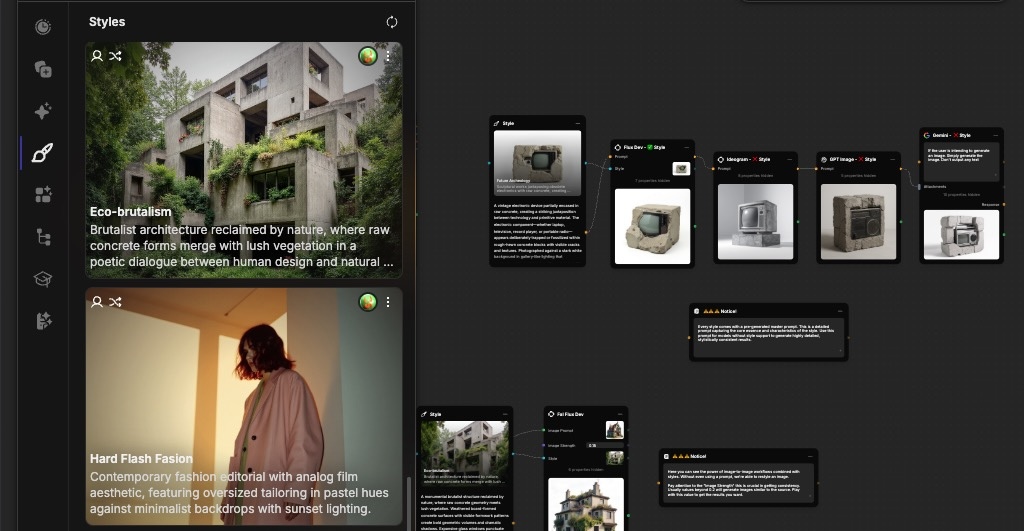
What Are Styles?
Styles in Fuser are custom AI models — specifically LoRAs (Low-Rank Adaptations, small fine-tunes layered on top of a base image model) — that modify the output of an image generation node. They let you reproduce a consistent look, character, or artistic effect without rewriting the prompt every time. Fuser supports three style training methods:
Styles
Understand and reproduce a specific artistic style, visual theme, or overall aesthetic from your reference images. This includes artistic techniques, color palettes, composition patterns, brushwork styles, lighting approaches, and visual moods.
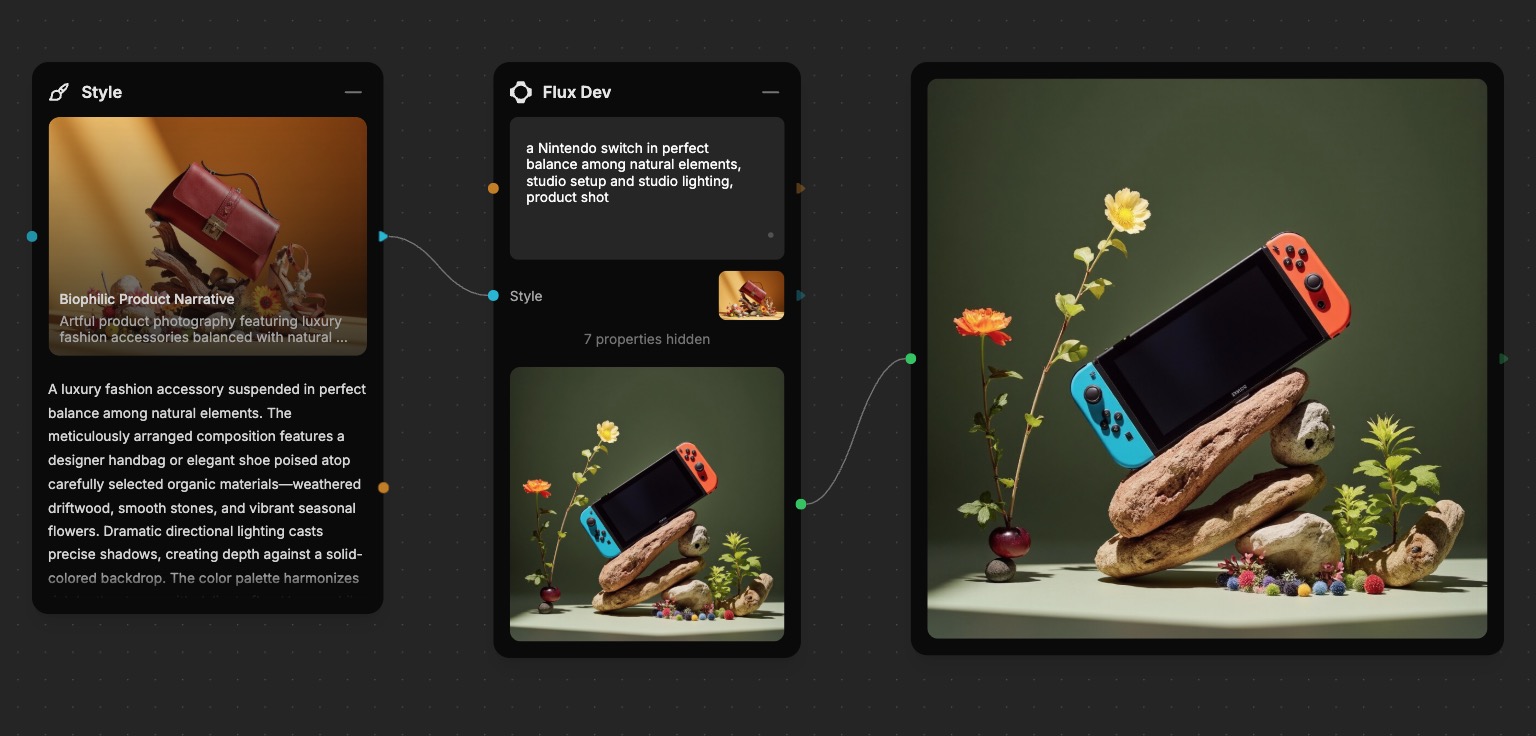
Style training is perfect for maintaining consistent branding across marketing materials, creating artwork in the manner of specific art movements, or developing a signature visual identity for your projects.
Objects
Recognize and generate a specific object or type of object based on the provided reference images. This training focuses on shape, form, materials, textures, and distinctive features that make an object recognizable across different contexts and angles.
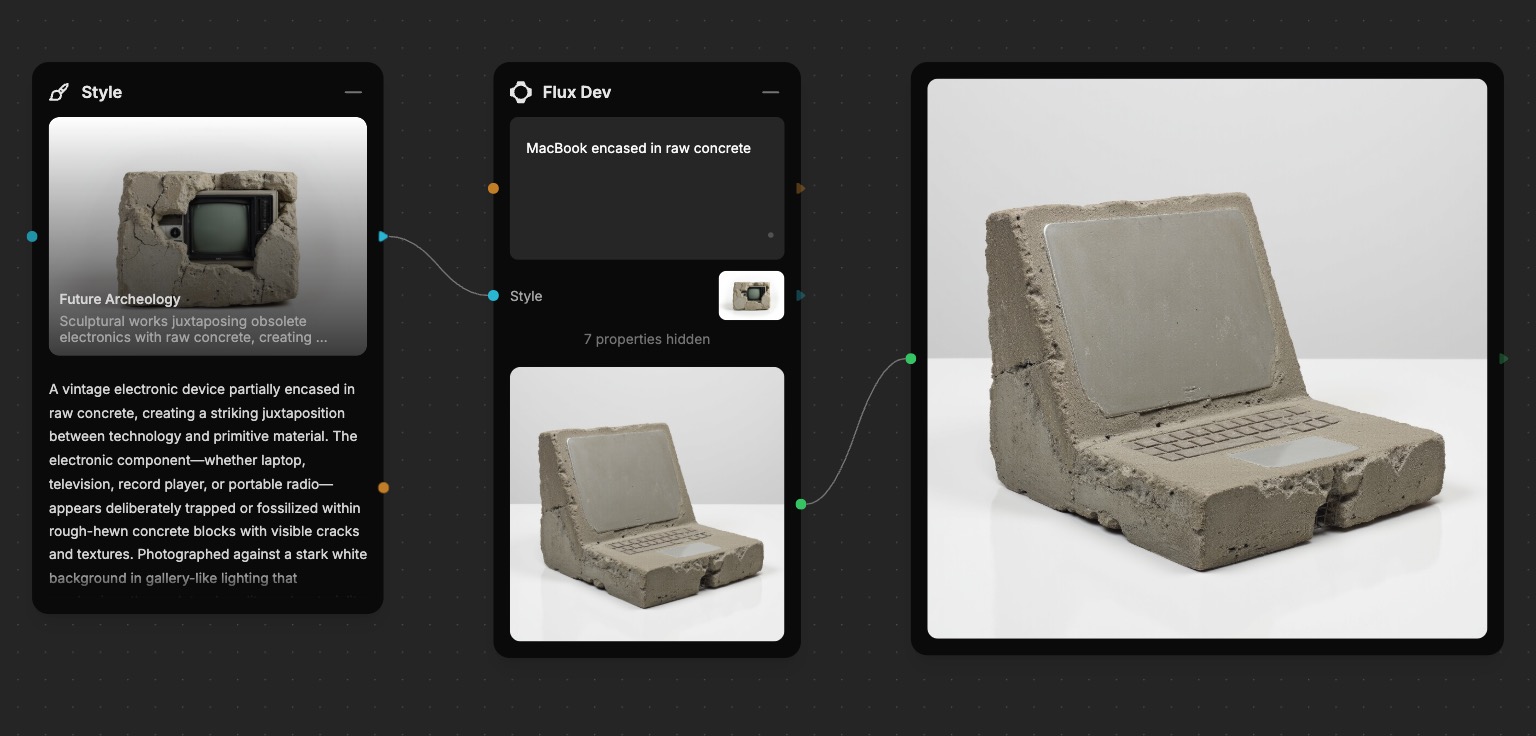
Objects are excellent for creating consistent product images, maintaining brand consistency across product lines, or generating variations of existing designs. Popular applications include industrial equipment, consumer products, toy designs, automotive components, furniture pieces, and architectural elements.
Portraits
Capture the likeness of a specific person for generating portraits or images featuring them in various contexts, poses, and settings. This training learns facial features, expressions, bone structure, and other distinctive characteristics that make a person recognizable.
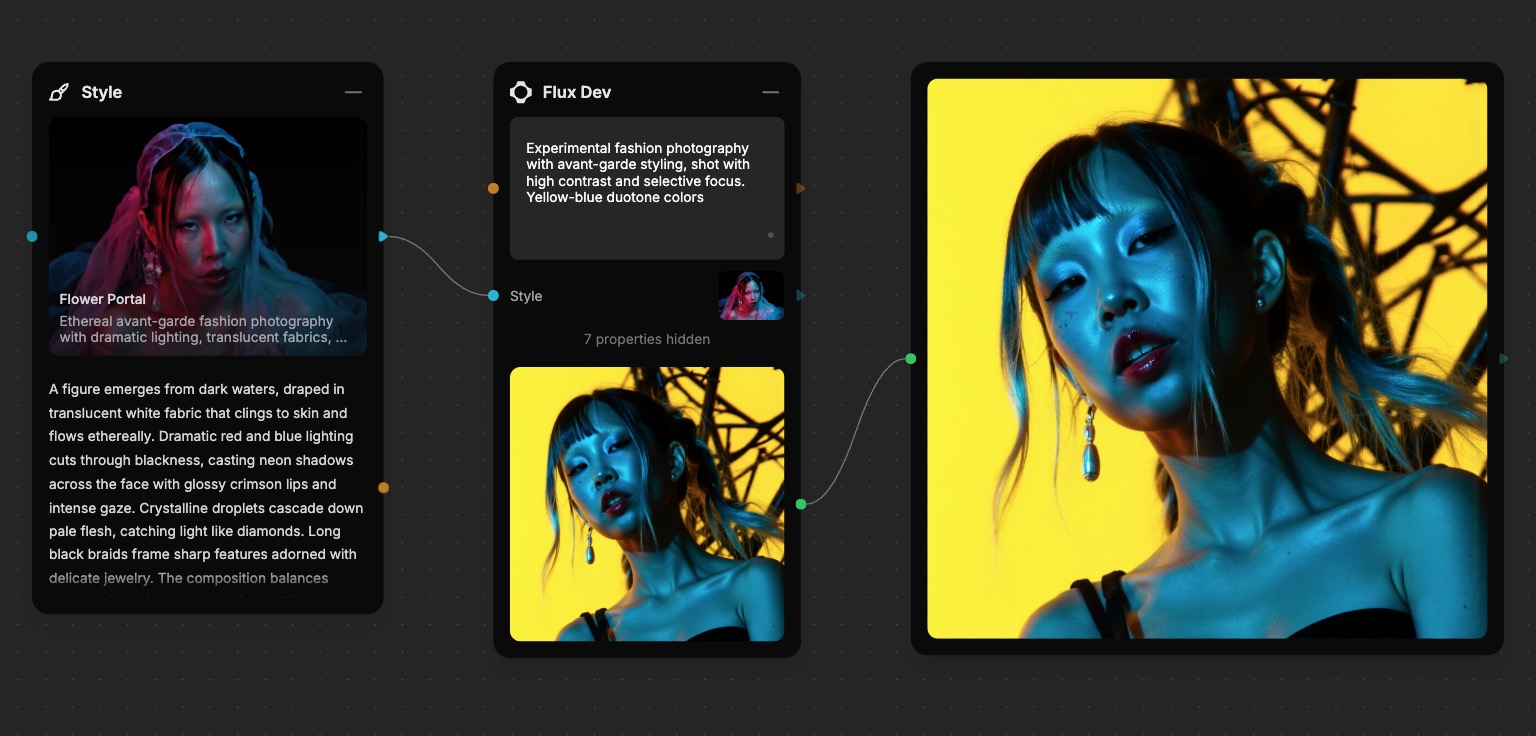
Portrait training enables you to create professional headshots, lifestyle photography, character illustrations, or place the subject in fictional scenarios while maintaining their authentic appearance. This is particularly valuable for content creators, marketers creating personalized campaigns, authors visualizing characters, or anyone needing consistent representation of specific individuals across multiple images.
Consent required for portrait training
When you train a style on someone's likeness, you need explicit consent from every person depicted. This is both a legal and an ethical requirement — the people in the references should understand how their images will be used and agree to it.
Fuser only permits portrait training on consented references. Styles found in violation are removed.
If you're unsure how to ask, contact the subject and explain plainly what you'll use the images for, then get their permission before training.
Using Styles
Fuser comes with a library of official and community-made styles that you can use to generate images. You can also train your own styles for that unique look you're after.
Open the Styles library
Click the Styles tab in the left sidebar to open the Styles Library.
Add a style to canvas
Find the style you want to use and click Add to Canvas.
Locate your new Style Node
Your selected style appears on the canvas as a new Style Node.
Connect it to image generation
Connect the style to an existing Flux Dev node, or quickly add a new one with Quick Connect.
Generate styled images
You are now ready to generate styled images with Flux Dev.
Prompts Are Not Required but Recommended
When using styles, you don't need to include a prompt for your generation. However using prompts in combination with styles is highly recommended to get the best results and guide the generation with your creative direction.
Trigger Words Are Managed for You
Fuser handles trigger words for you. A unique trigger word is generated when the style is initialized, then automatically appended to your prompt at generation time on supported nodes (Flux Dev and Flux Krea Dev). You don't need to type the trigger word into your prompt yourself.
Using Styles with Other Image Models
While styles are currently only compatible with Flux Dev, we understand you may want to use them with other image models like GPT Image, Gemini, Ideogram, and Recraft. To help you achieve consistent results across different models, each style includes a Master Prompt socket.
The Master Prompt provides a highly accurate and descriptive text-based representation of the style that can be used with any image model and additionally enhanced by LLMs. This helps you maintain visual consistency even when working with models that don't directly support styles.
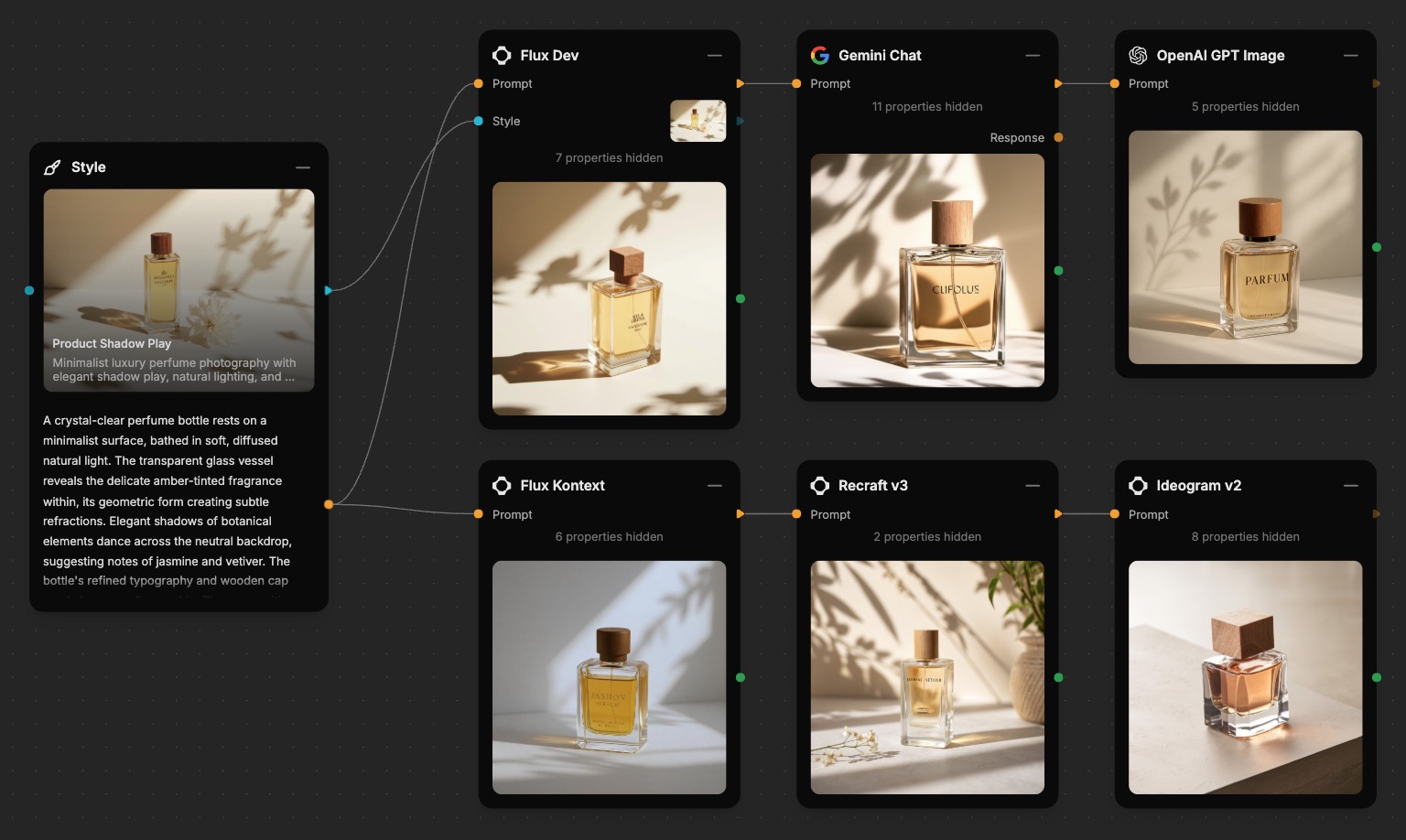
In the example above, even though only Flux Dev directly supports styles, the Master Prompt enables us to achieve a consistent visual look across Flux Kontext, Gemini, GPT Image, Recraft, and Ideogram. Each generated image reflects qualities and characteristics of the style, demonstrating how the Master Prompt bridges the gap between style nodes and models that don't natively support them, allowing us to maintain brand or artistic consistency, regardless of which image model we use.
Training Considerations
If you can't find a style that fits your needs, you can always train your own. Style training lets you teach the AI a new concept, such as a specific person's face, a product, or a unique artistic and aesthetic style.
When to Train a Style
Since training styles is a time-consuming and costly process, it's important to know when to train a style. More often than not, you can get the results you want by crafting and engineering a great prompt, especially using reference images. An example of this can be seen in the Many to One section of the Sockets & Connections guide.
However, while prompt engineering and reference images can go a long way, this approach doesn't always scale, especially when you need to maintain:
- Character Consistency: To generate images of the same person or character in different scenes.
- Unique Artistic Styles: To reproduce a personal art style or a very specific aesthetic.
- Brand Identity: To create images that adhere to a specific visual guidelines.
- Product Photos: To generate consistent images of a specific product.
Preparing Your Training Data
The quality of your training data is the most important factor for a successful style.
- Image Count: You'll need between 5-15 high-quality example images of your concept.
- Consistency: All images should clearly feature the same subject or style.
- Variety: Provide images with different angles, lighting, and backgrounds to help the model generalize.
- Image Quality: Use high-resolution images that are well-lit and in sharp focus.
Training Your Own Style
Training your own style is a powerful way to create a unique visual identity for your projects. It allows you to capture and reproduce specific artistic styles, objects, or characters, ensuring consistent visual consistency across your creations.
Open the training panel
Go to the Styles tab in the left sidebar and click Create a Style. The Style Training Panel opens on the right.
Configure the style
Pick a type — Style, Object, or Portrait — depending on what you're training. Give the style a descriptive name that reflects its look or purpose. Toggle Publish to Community if you want to share it with other Fuser users.
Add training images
Drag and drop 5–15 high-quality images from your Assets or Generations library. They should clearly represent the qualities you want the style to learn — same subject across varied lighting, angles, and backgrounds.
Start training
Click Start Training to kick off the process. Follow progress in the Styles tab in the left sidebar.
Training Time
Training a style takes 1 to 5 minutes, depending on the size of your dataset and the complexity of the style.
Use your new style
Once training is complete, your style appears in your library and is ready to apply to any compatible image-generation node.
Publishing to Community
Publishing your style to the community will make it available to all Fuser users. This is a great way to share your style with others and help them get started with their own projects. To reward you for your contribution, community-published styles do not count toward your storage limit.
We automatically screen all community styles for quality and relevance. If your style does not meet our standards, it will remain private and only accessible to you.
Troubleshooting Styles
Although powerful, styles are not a magic bullet. There are a few things you can do to improve the quality of your training and generation:
- Provide a Good Prompt: A good prompt is key to getting the best results. Try using a prompt that is specific to the style you're trying to achieve. You can always use the Master Prompt as a good starting point.
Small improvement in the prompt can make a big difference in the results
- Improve Your Dataset: The most common cause of poor results is a low-quality or inconsistent dataset. Try adding more varied, high-quality images.
- Choose the Right Type: Depending on what you're trying to achieve, you may want to choose the right type of style. For example, if you're trying to create a style for a specific person, you may want to choose a Portrait rather than a Style or Object.
What's Next?
Now that you know how to work with styles, you can elevate your creative output.
- Templates - Explore templates that use advanced style blending.
- Importing Data - Learn more about preparing high-quality datasets.
- Nodes Reference - Find all the nodes that support style application.
- Building Flows - Integrate styles into your creative workflows.