Running recipes
Change a recipe's inputs, run it, and choose the results you want to keep using.
A recipe brings a flow's inputs, execution, and results into one view. Change prompts, swap reference media, and compare runs here.
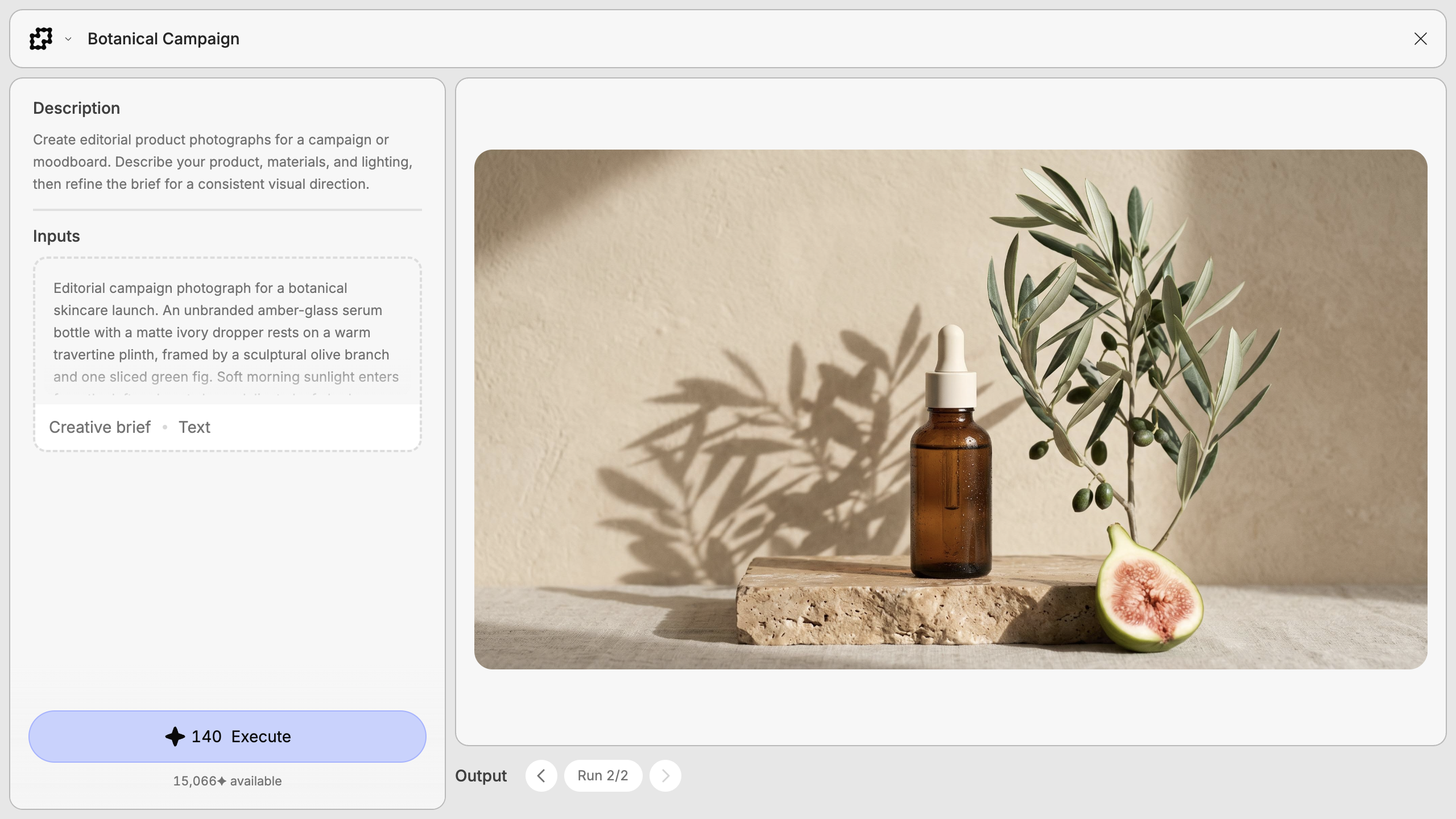
Run a recipe
Open a recipe from the Gallery, or click Preview recipe in the recipe panel while building your own.
On your canvas, choose Enter focus from the recipe node's menu. This opens the run preview; Open recipe takes you to its internal flow for editing.
Set your inputs
Change the example prompt, media, or settings. Each recipe offers its own controls.
Check the cost and execute
Review the credit estimate beside Execute, then click it. Fuser checks the inputs and shows progress as it runs.
Inspect your results
Inspect the result. For multiple outputs, select a card under Outputs. Change an input and execute again to try another variation.
Change inputs
Inputs include text, number fields, sliders, dropdowns, and switches. Their options and limits come from the nodes inside the recipe.
For an image, video, or 3D mesh, hover and click Replace. Select an item from Assets, find one with Search assets..., or Upload a file. Selecting an asset applies it immediately; uploads also accept dropped files. Audio inputs use the usual media controls.
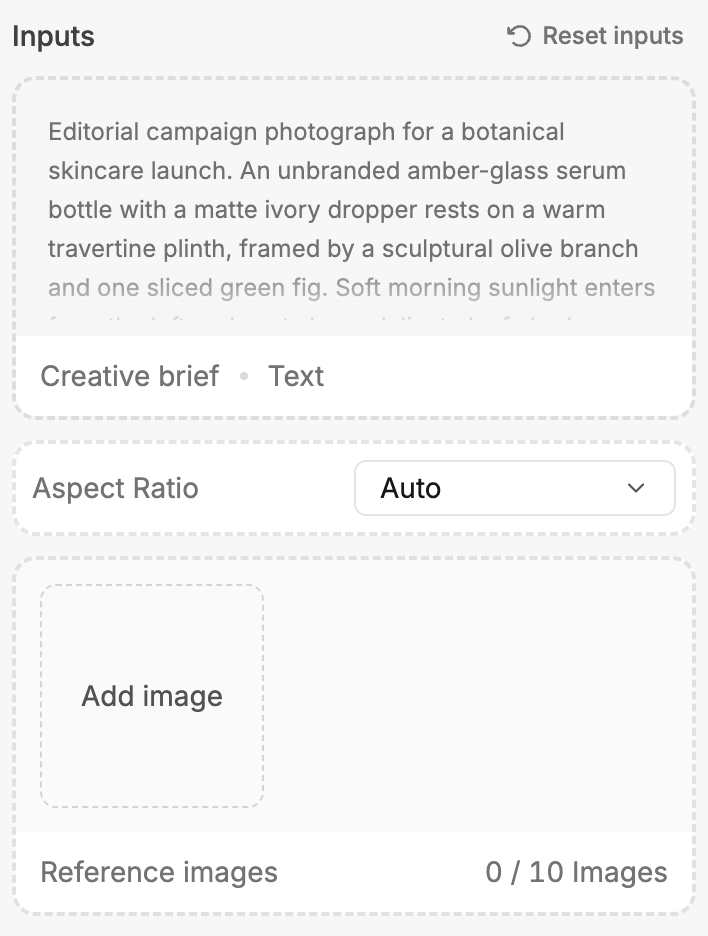
Multiple reference images
For an input accepting multiple images, use Add image, Replace, and Remove to manage references. The counter shows the image count and the model's limit, when known.
Inputs connected on the canvas
Wired inputs get their values from connected nodes and are locked in preview. Change the connected node or disconnect the wire to enter a value.
For other ways to add media, see Working with Media.
Restore the starting values
Click Reset inputs, then Reset, to restore starting values and overwrite your changes. Connected inputs keep using their wires.
Dashed input borders mark starting values; solid borders mark changes.
Credits and execution status
Execute shows estimated credits: + means some costs remain unknown;
... means the estimate is pending. Available credits appear below.

Blocker messages explain what to fix. Uploading… means media is still being prepared. Insufficient credits means the known cost exceeds your available balance.
Click Stop to cancel an active run. A failed execution is marked Run failed.
Review outputs and earlier runs
Text is formatted, video and audio have playback controls, and 3D outputs are interactive. Compositor outputs show the rendered image or video.
Use the arrows beside Run to browse previous executions. The cards under Outputs switch between results from the selected run.
Choosing a run changes the node's output
With editing access to a placed recipe, choosing a compatible earlier run sets its results as the node's outputs, including for connected nodes. Return to the latest run or complete a new execution to use the newest results.
Older runs remain viewable after the output layout changes. Not in this run marks missing outputs. Return to the current view to execute when prompted.
Keyboard navigation
| Key | Action |
|---|---|
Escape | Close the preview. |
← / → | Browse runs, or switch outputs when there's only one run. |
Enter / Space | Select a focused output card. |
When you're typing or using an input control, those keys stay with the control.