Sharing & Collaboration
Share flows and collaborate with your team.
Fuser is built for co-creation. This page covers downloading your work, sharing read-only public links, and contributing to the Fuser community. For workspace-gated team collaboration — members, roles, sharing with specific people — see the Teams section.
Downloading Your Work
Fuser provides multiple ways to download your work, from exporting multiple files as a zip archive to downloading individual node outputs on the canvas.
To download any of your past generations or assets, open the appropriate library from the left sidebar, select the items you want to download, and click the button that appears on the bottom of the library panel.
To download individual node outputs on the canvas, select the node you want to download and from the Node Toolbar, click the button.
Public Link Sharing
The easiest way to share a read-only version of your workflow is by generating a public link.
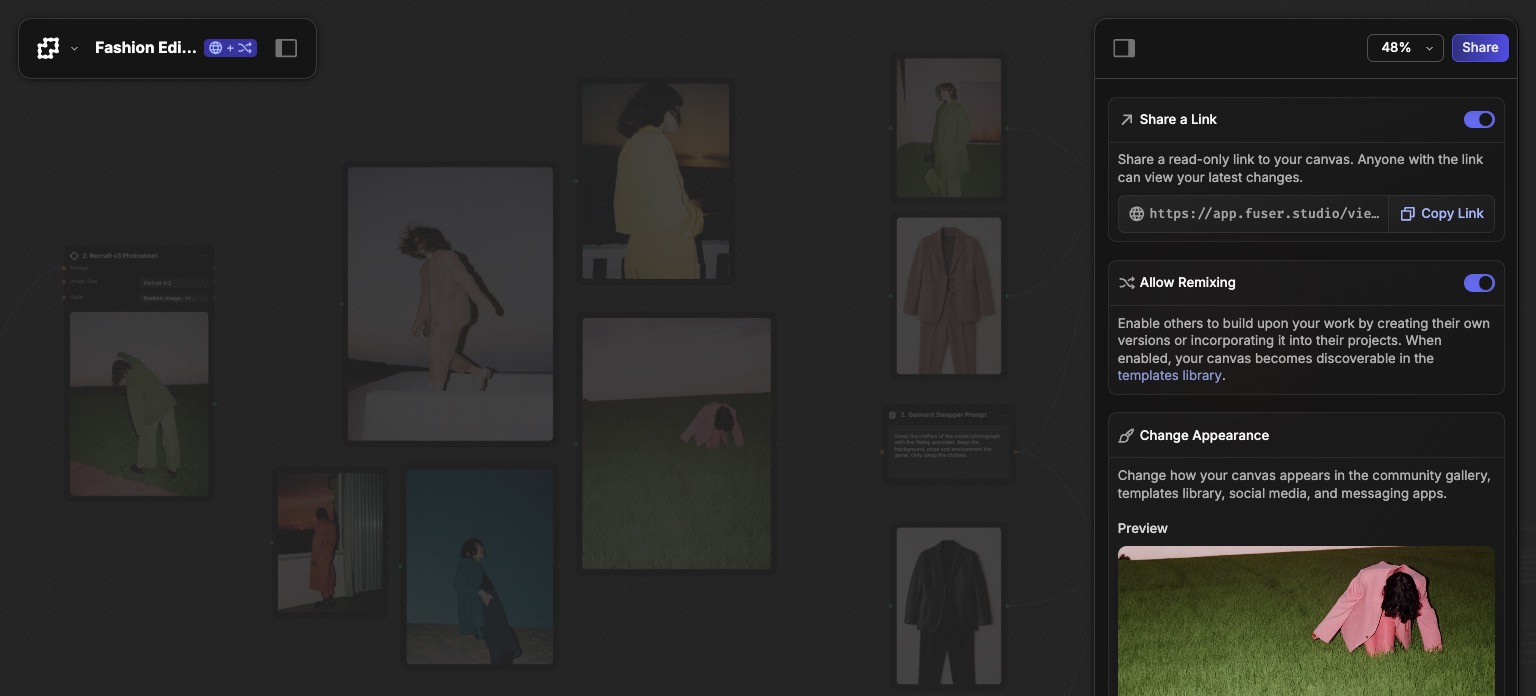
- Click the Share button in the top right of the canvas.
- Turn on Share a Link to make your workflow public.
- Click Copy Link to copy the link to your clipboard.
View Before Sharing
View the workflow before sharing it by clicking on the address to the left of the Copy Link button.
Where the public link goes
Turning on Share a Link publishes your project at a public URL of the form /view/:slug. Anyone with the URL gets a read-only view of the canvas — no Fuser account required. Turning Share a Link off stops the URL from resolving immediately.
Public Sharing Privacy
When you share a public link, anyone with the link can view your workflow. Public viewers can pan and zoom the canvas, but the per-node toolbar is hidden entirely in public view, so none of its actions (execute, download, focus, annotate) are available. Public viewers also can't change properties or open chat/history. Generally:
- ✅ Pan and zoom the canvas to inspect the workflow.
- ❌ No node toolbar — execute, download, enter focus, and annotate are all hidden.
- ❌ No property changes — the Properties panel is read-only or unavailable.
- ❌ No private style access — viewers can see the style's name, preview image, and Master Prompt, but not the underlying training data.
- ❌ No chat or history — per-node chat, context, and generation history are not visible.
A Note on Styles
Although public viewers are restricted from accessing your private styles, they can view the name, preview image, and Master Prompt of the style nodes that you have present on your public canvas.
Customize Appearance and Description
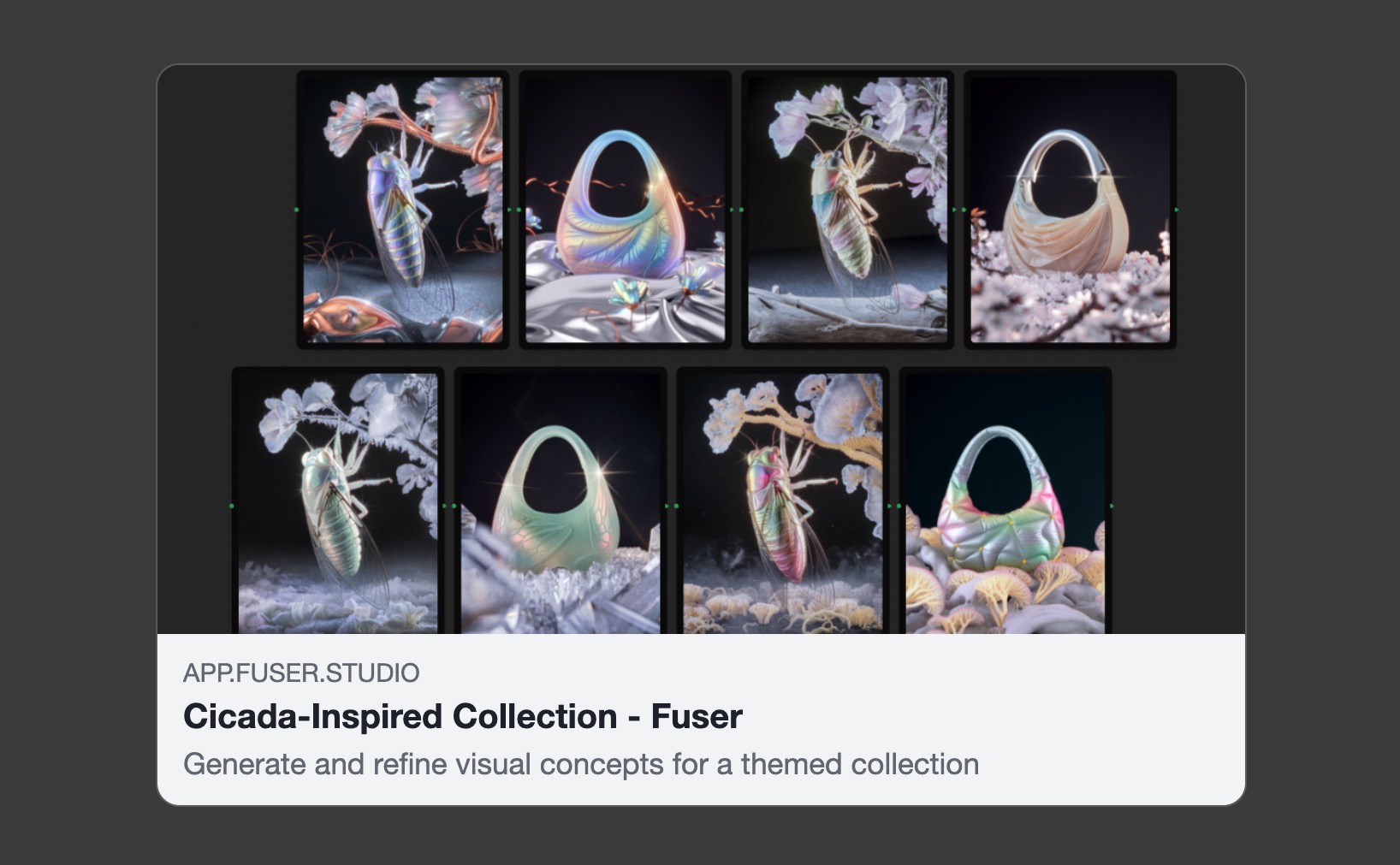
When you share a public link, you can customize the appearance and description of your workflow. Doing so will ensure that your workflow appears professionally on social media, has a higher engagement rate, and is discoverable by others.
- Preview Image: You can change the preview image of your workflow by clicking on the
Generate Previewbutton. - Title: You can change the title of your workflow by adjusting the
Titleinput field. - Description: You can change the description of your workflow by adjusting the
Descriptioninput field. - Finally click on
Save Changesto update your public link.
Use Existing Images
Drag and drop a pre-existing image from your Assets or Generations library into the Preview Image field.
Team Collaboration
Workspace-based collaboration — invites, roles, sharing with specific people or teams, and access auditing — has its own section.
Members
Invite people, assign roles (Owner / Admin / Member), and manage who's in your workspace.
Sharing projects
Share with specific members, teams, or external emails. View / Comment / Edit access levels.
Access reference
The full rules of who can see what across teams, folders, and shares.
Community Sharing
No software is complete without a community. Fuser is no different. We want to build and maintain a community of users who are sharing their workflows, templates, and other resources with the world.
Fuser comes with a library of official and community-made styles and templates. You can also share your own styles and templates with the community.
Templates
If you've built a workflow that solves a common problem or demonstrates a creative technique, you can submit it to the public Template Library. To do so, click on the Share button in the top right of the canvas, and enable the Allow Remixing option. To create a template and share it with the community, see the Creating Your Own Templates guide. To learn about how others can use your template visit Template Privacy.
Requirements
Your template must be well-documented, easy to use, and follow community guidelines.
Styles
Styles are a powerful way to create a unique visual identity. They're even better when they expose you to a new world of possibilities. That's why we've made it easy to share your own style with the community, by simply enabling the Publish to Community option during style training. To learn about how others can use your style visit Style Privacy.
Community Styles
To reward you for your contribution, community-published styles do not count toward storage limits! But to ensure the quality of the styles in the library, we automatically screen all community styles for quality and relevance. If your style does not meet our standards, it will remain private and only accessible to you.
Publish Private Styles
If you have an existing style that you want to share with the community, you can always do so by clicking on the Publish to Community option from the style context menu in the left sidebar.
Privacy and Security
- Private by Default: All your workflows are private unless you explicitly choose to share them.
- API Key Security: API keys are never included in shared links or exported files.
- Review Before Sharing: Always check your workflow for any sensitive information before creating a public link or template.