Editing recipes
Open a recipe's flow, refine its details, and choose whether to edit, copy, or unpack it.
Open a recipe to change prompts, swap models, add steps, or simplify its controls.
Your working flow is separate from the saved recipe. Preview your changes, then save or publish a version for placed recipes to use.
Open the recipe
Click Open recipe, or select the node and press E. The canvas shows its
internal flow; the right Recipes panel contains its details, Inputs,
and Outputs.
With editing permission, you can change the flow and resume edits later. Otherwise it opens as View only, with Make a copy to edit available.
Change the flow and its controls
Edit nodes and connections as on a project canvas. In Botanical Campaign, you might refine the art direction or add a step after image generation.
Connect New input on Input to an internal input to expose a control. Connect an internal result to New output on Output to expose a result.
Expand a panel row to edit its name and description; drag its handle to reorder. Hover for Zoom to node and Remove.
After removing a control, check the connections and test before saving. See Inputs and outputs for wiring options.
Edit the recipe details
Use Name and Description to explain the result and required inputs: “Create a botanical campaign image from a creative brief.”
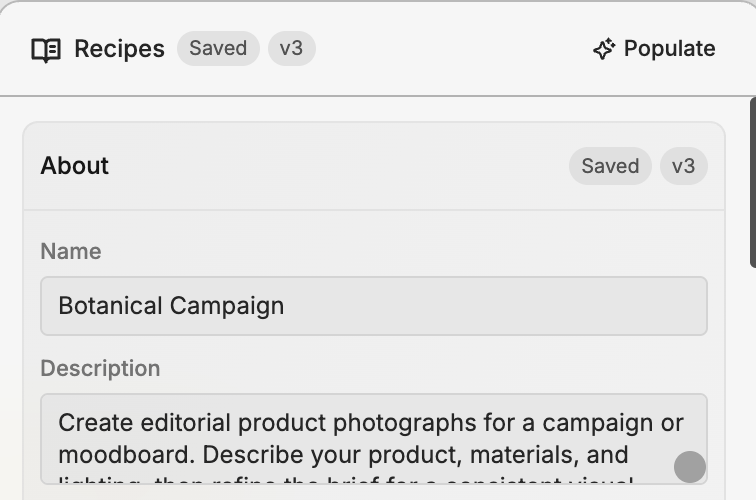
Populate suggests a name, description, categories, tags, and input/output labels and descriptions from the flow. Review them before saving.
You can also update:
- Thumbnail — Upload media or Replace the preview image or video.
- Categories — choose up to three.
- Tags — select or create up to five.
Use Save changes or Update recipe to save these details. They're shared across versions, so older versions also show the updated details.
Preview and save your changes
With a name, description, and at least one output, click Preview recipe
to try the interface. Change inputs and Execute to check results;
Escape returns to the editor.
Use Save changes for unpublished recipes or Update recipe for published ones. Up to date means no pending changes. Version status shows Unsaved changes, Saved, or Published.
Saving flow changes creates a version. You then choose which placed recipes use it; see Publishing and versions.
Make a copy or unpack the nodes
Choose what you want to work with:
| Action | Result |
|---|---|
| Open recipe | Inspect the recipe's internal flow, or edit it when you have permission. |
| Make a copy to edit | Create your own reusable recipe from a view-only recipe. Your copy has its own versions. |
| Detach into your own copy | Create an independent recipe and switch the selected canvas node to use it. |
| Unpack into nodes | Replace this canvas instance with its internal nodes, grouped under the recipe's name. |
Keep a reusable recipe
In View only, Make a copy to edit places a copy beside the original in your project, or creates a project if needed. Open your copy to edit without changing the original.
Detach into your own copy in the selected node's properties keeps it in place and switches it to your independent recipe.
Work directly with the nodes
Choose Unpack into nodes from the node's context menu. Its selected version expands into a group, preserving connections to the surrounding flow.
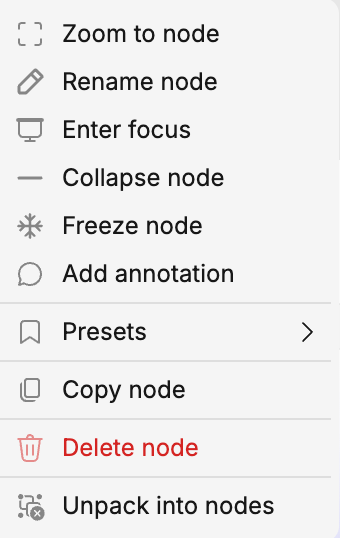
Edit those nodes directly without changing the source recipe. Undo returns the group to a recipe node in one step.
Move between recipes and your project
The breadcrumb trail shows your project and opened recipes. Click an earlier
name to return. Select a nested recipe and press E to open it; with no
recipe node selected, E goes back one level.
Leaving with unsaved flow or input/output changes offers Save & leave or Update & leave, Discard & leave, and Keep editing. Save recipe details before navigating away too.
Archived recipes open read-only. Owners can Unarchive to edit; others can make a copy.