Canvas & Navigation
Move around and work on the Fuser canvas.
Master Fuser's infinite canvas to efficiently organize and navigate your AI workflows.
The Infinite Canvas
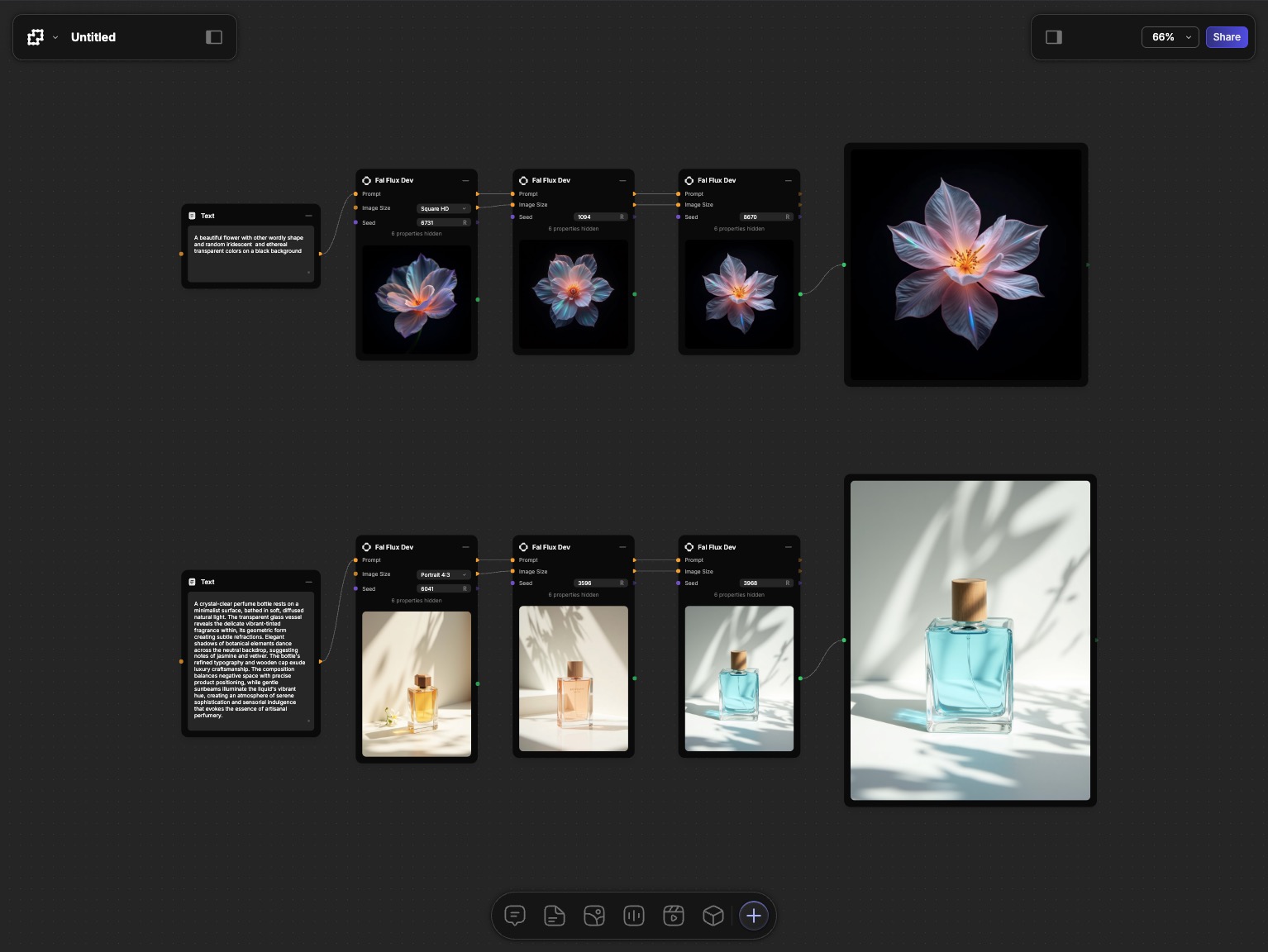
Fuser's canvas gives you unlimited space to build, experiment, and organize your workflows. Think of it as a boundless whiteboard where you can:
- Spread out complex workflows without running out of room
- Group related nodes by positioning them together
- Create multiple workflows in the same project
- Scale from simple to advanced complexity
Essential Navigation
Here are some essential navigation techniques to get you started:
Panning (Moving Around)
- Mouse/Trackpad: Click and drag on empty space
- Mouse Wheel: Use your mouse wheel to pan vertically, or hold
Shiftwhile scrolling to pan horizontally.
Zooming
- Mouse:
⌘/Ctrl+Scroll wheel - Trackpad:
⌘/Ctrl+Scrollor pinch to zoom - Keyboard: The following shortcuts are available for quick zooming:
⌘/Ctrl++to zoom in⌘/Ctrl+-to zoom out⌘/Ctrl+0to fit the canvas to the view⌘/Ctrl+1to fit the selected nodes to the view
Smart Focusing
- Zoom to node: Double-click on a node to center and zoom to it. (To open the node in Focus mode, press F instead.)
- Fit All: Double-click on empty space to see your entire workflow
- Fit Selection: Select multiple nodes and press
⌘/Ctrl+1to fit them in view
Selection Techniques
There are two types of selection in Fuser: single selection and multiple selection.
Single Selection
- Click any node or connection to select it.
- To deselect, click on an empty space on the canvas or press
Esc.
What happens when a node is selected?
When a node is selected, it shows a highlighted border and a soft glow. The Node Toolbar appears below the node with the following actions:
- Zoom to node — center and zoom the canvas on the node.
- Download media — save the node's current output (only when the node has image / video / audio / mesh output, you can edit, and you're not in a public view).
- Enter focus — open the node in Focus mode.
- Add annotation / Edit annotation — attach a text note to the node.
- Delete node — remove the node (touch devices only; on desktop, press Delete).
The Properties and Chat panels are not part of the Node Toolbar — they live in the right-side overlay (toggled with Shift+P) and on the node itself, respectively. To execute a node, use the bottom canvas toolbar or press Cmd/Ctrl+Enter.
Multiple Selection
- Box Selection: Hold
Shift+Click and dragto select multiple nodes by drawing a box around them. - Add to Selection:
⌘/Ctrl+Clickto add/remove nodes and connections from selection - Select All:
⌘/Ctrl+Ato select all nodes
Canvas Controls
In addition to using the mouse and keyboard to navigate the canvas, you can also use the following controls:
Viewport Controls
Located in the top-right corner of the canvas:
- Zoom In/Out: Manual zoom controls
- Fit to Screen: Reset viewport to show all content
- Zoom Percentage: Current zoom level indicator
Mini-Map
A small overview showing:
- Your entire workflow layout
- Current viewport position
- Quick navigation by clicking, zooming, and dragging
Performance Tips
We highly recommend to break down large workflows into separate smaller projects to get the best out of Fuser. However we also understand that you might want to keep your workflow in one place. In that case, you can use the following tips to keep your workflow organized:
Use Zoom Levels
Zoom out for big picture organization, zoom in for detailed editing, and work at comfortable zoom levels (50-200%).
Strategic Placement
Keep frequently used nodes in the center, place utility nodes at the edges, and group completed workflows away from active work.
Memory Management
Fuser handles performance optimization automatically, large canvases maintain smooth interaction, and nodes outside the viewport use minimal resources.
Shortcuts Reference
Here is a comprehensive list of shortcuts that you can use to navigate the canvas:
Navigation
⌘/Ctrl+Mouse wheel: Zoom in and out⌘/Ctrl++Zoom in⌘/Ctrl+-Zoom out⌘/Ctrl+0Fit the canvas to the view⌘/Ctrl+1Fit the selected nodes to the viewDouble-clickon empty space: Fit all contentDouble-clickon node: Zoom to the node (useFto open it in Focus mode)
Panels & overlays
⌘/Ctrl+KorShift+A: Toggle the Nodes panel (both shortcuts open the same panel)Shift+P: Toggle the Properties overlayF: Open the selected node in Focus mode
Selection
Shift+Click and drag: Box selection⌘/Ctrl+Click: Add/remove from selection⌘/Ctrl+A: Select all nodesEsc: Clear selection
Canvas Operations
⌘/Ctrl+C: Copy selected nodes⌘/Ctrl+V: Paste nodes⌘/Ctrl+Enter: Execute the focused nodeDeleteorBackspace: Delete selected nodes or selected connections⌘/Ctrl+Z: Undo last action⌘/Ctrl+Shift+Z: Redo last action
Best Practices
Organize your workflow spatially to improve clarity and maintainability. Here are the key principles for effective workflow organization:
- Flow Direction: Place inputs on the left, processing in the middle, outputs on the right. Keep data moving consistently left-to-right, and start with a simple linear flow and expand naturally.
- Grouping & Organization: Stack related nodes vertically for clear functional clusters. Keep related nodes close together and group similar operations by function to separate concerns.
- Visual Structure: Use consistent spacing and grid alignment. Line up similar nodes vertically or horizontally, and resize nodes to emphasize visual hierarchy. Use white space effectively - don't crowd nodes together.
- Complex Projects: Divide canvas into logical areas, use text nodes to label complex areas, leave room for expansion, and document workflow sections with text nodes.
What's Next?
Now that you can navigate efficiently:
- Understanding Nodes - Master the building blocks
- Sockets & Connections - Learn advanced connection techniques
- Interface Guide - Explore panels and controls
- Building Flows - Create complex workflows