Sharing & your audience
The public URL, QR codes, discovery listings, the "Made with Fuser" badge, and what visitors can and can't see.
Once an app is published, anyone with the link can open it — no Fuser account required. The Settings panel in focus mode is where you manage how it's shared and presented.
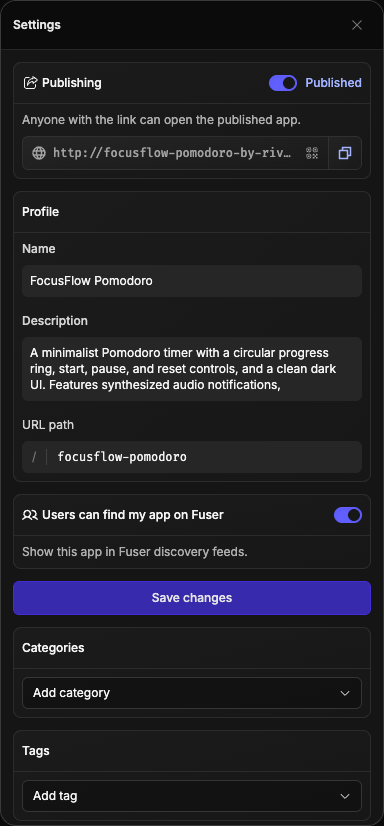
The public URL
Every published app gets a public address. Apps on your personal profile get a readable path built from your username and a slug; edit the slug in the URL path field to make it memorable. Apps owned by an organization use a stable, ID-based URL instead.
Next to the link is a QR code pointing at your app's public address — point a phone at it to open the app, or drop it into a screen share.
Custom domains
Apps are served on Fuser's own domain, so there's no custom-domain setup to configure. Your app is reachable the moment you publish.
Preview vs. published
A visitor sees one of two very different states:
- A published app is public. Anyone with the link opens it anonymously.
- A draft preview is private. Only the project's editors can open it; the link asks everyone else to "open this app from its workspace."
Access depends entirely on whether the app is published. An app that was never published and one that's been unpublished look identical from outside — both report that there's no app at that address — so unpublishing truly takes it offline.
Listing & presentation
The Settings panel also controls how your app presents itself:
- Name and Description — the app's title and summary.
- Users can find my app on Fuser — lists the app in Fuser's discovery feeds. Off by default; turn it on when you want to be found.
- Categories and Tags — help people surface the right kind of app.
- Screenshots — Fuser generates a screenshot for you; upload your own to override it (PNG, JPG, or WebP).
Click Save changes to apply your listing edits.
The "Made with Fuser" badge
Published apps carry a small Made with Fuser badge that links back to Fuser and opens a QR drawer for viewing the app on a phone. It appears on the live app for your audience, never inside the editor.
Moving it. Drag the badge to reposition it anywhere on the page, so it never sits on top of your app's own interface. A plain click still opens the link — only a click-and-drag moves it. Its position is remembered per app in the browser you moved it in, and it is always kept on screen.
Opening the QR drawer. A sliver of a QR code peeks out just below the badge —
click or tap it to reveal the full code for opening the app on a phone. Click it
again or press Escape to tuck it away.
Removing the badge
On the Professional and Teams plans you can remove the badge entirely: open the app's settings, turn on Hide the Made with Fuser badge, and click Save changes. On the Free and Indie plans the badge stays on every published app.
If a subscription lapses, the badge comes back on your published apps. Your setting is kept, and it takes effect again as soon as you resubscribe.