Editing your app directly
Beyond prompting — edit content, design tokens, media, and code by hand, with the agent's help where you want it.
Prompting is the fastest way to change an app, but it isn't the only way. When you know exactly what you want, edit content, design, media, and code by hand. Switch between these surfaces with the toggles in the composer and the Code tab at the top of the preview.
Edit content
Click the Edit toggle in the composer to open the content inspector. It lists the editable text and color "slots" the agent exposed, grouped by section. Hover a slot to highlight the matching element in the preview, so you see exactly what you're changing.
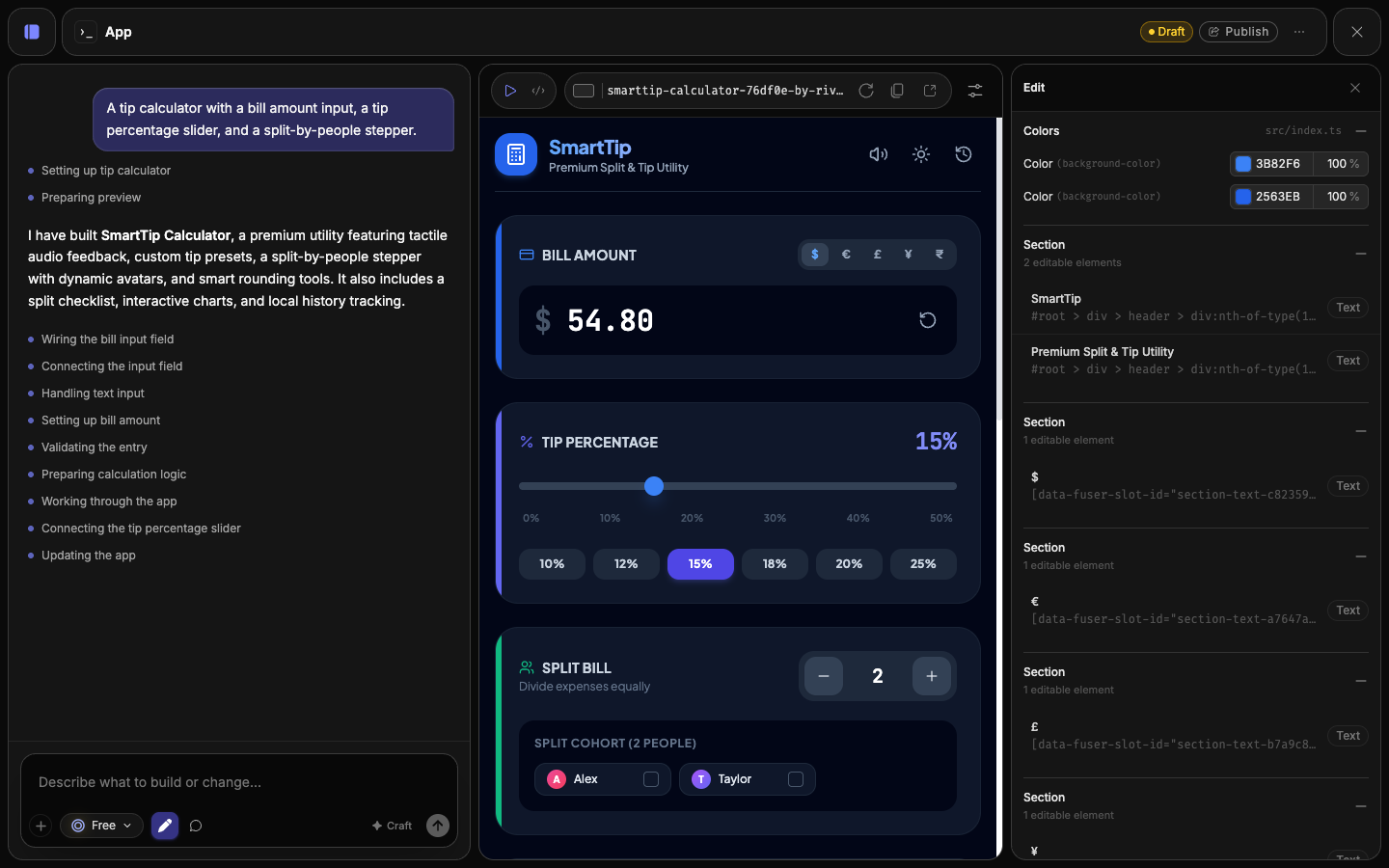
Edit a value inline and save — no rebuild required. Color tokens sit at the top of the panel, so you can recolor the app's accents in place.
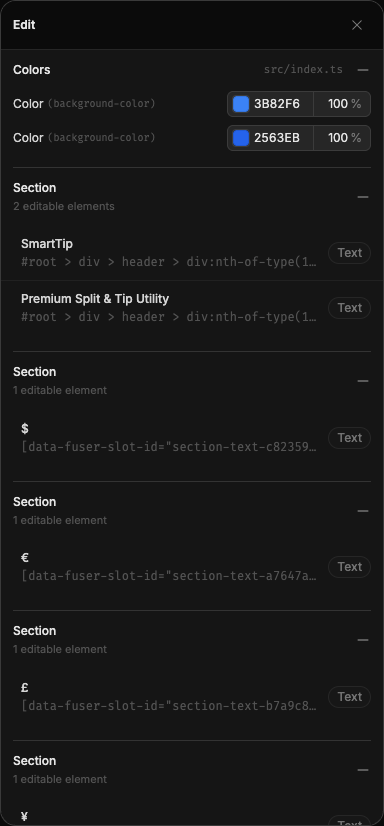
Wired content edits upstream
When content comes from a node you've connected (see Connecting inputs), the inspector points you to that upstream node instead. Edit it there, and the app updates.
Markup: pin instructions onto the preview
Sometimes it's easier to point than to describe. Click the Markup toggle, then click any element in the preview to drop a pin and attach a note — "make this bigger", "this color is wrong".
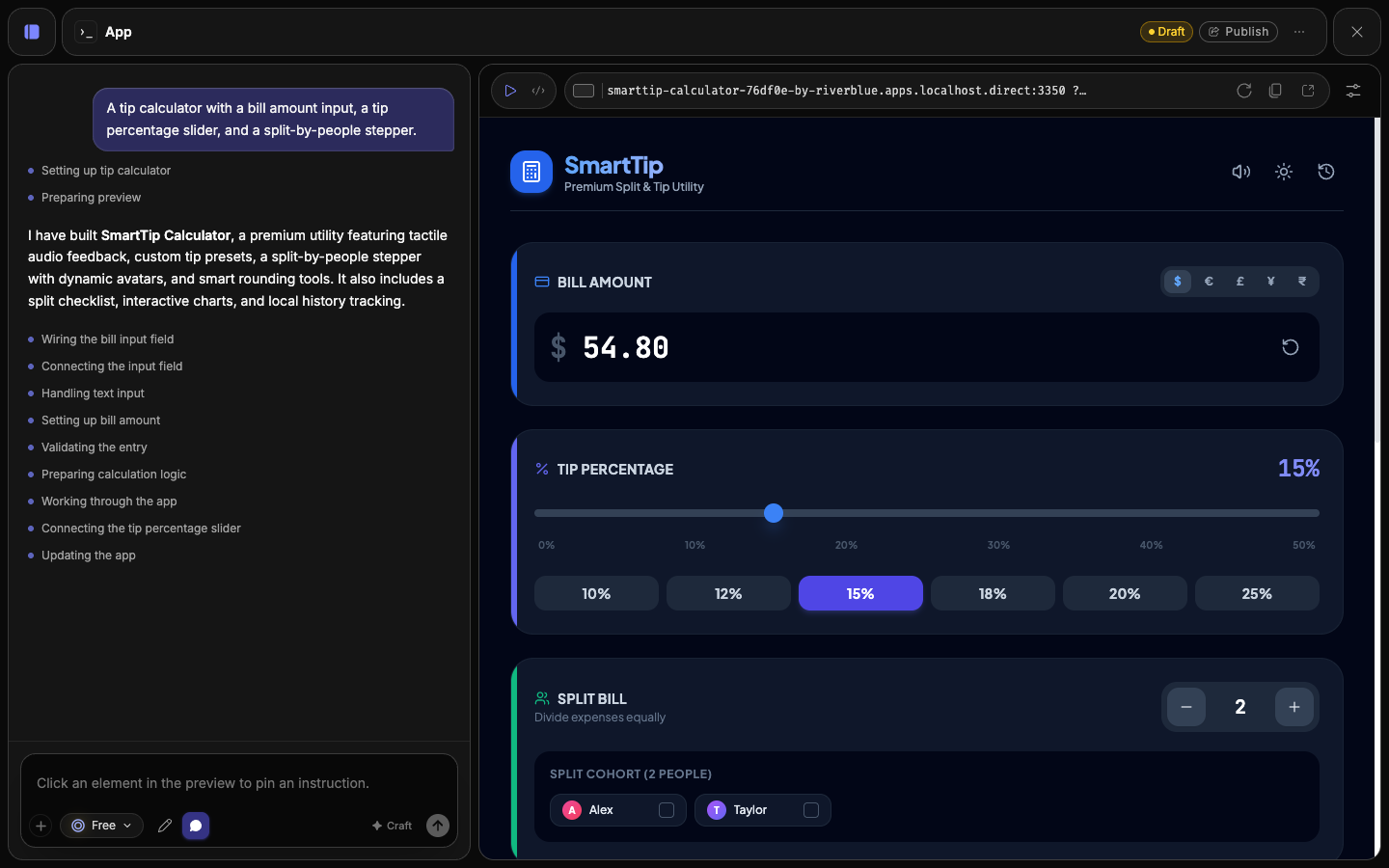
Drop as many pins as you need, then send them in one pass with Send revisions. The agent works through your notes element by element — a precise, visual way to request a batch of small changes.
Design: fonts and colors
Set the app's typography and color without writing CSS. Pick a font from the presets or browse Google Fonts, and adjust color tokens with the color picker. Changes apply across the whole app, so it stays consistent.
Replace media
In Edit mode, hover any image, video, or audio element in the preview to reveal a replace control. Click it to open a media picker and swap in an upload, a generation, or an asset from your library.
Code view
For full control, open the Code tab at the top of the preview — a real editor with file tabs, syntax highlighting, and a dirty-state indicator.
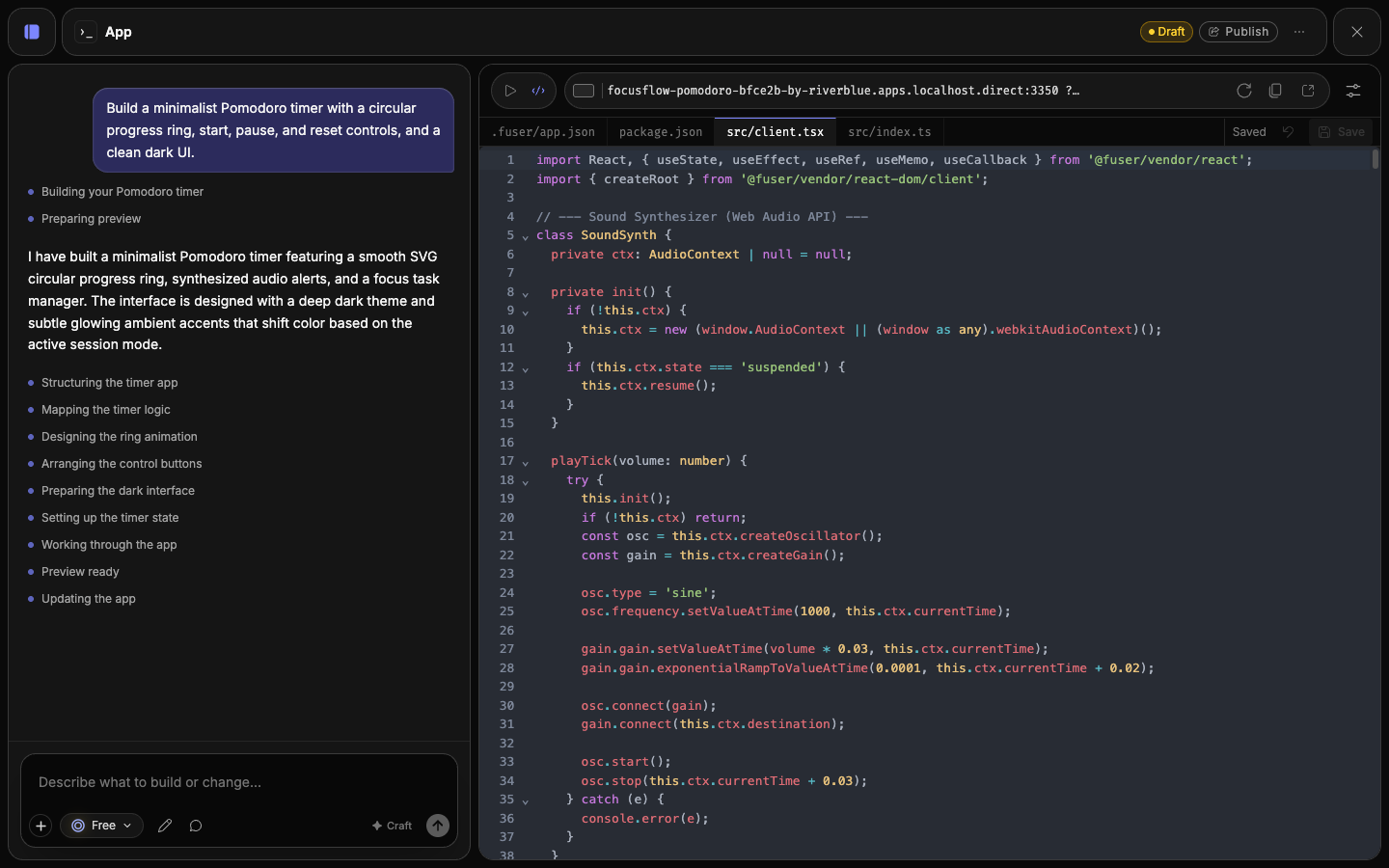
Save with . The app rebuilds and you'll see Saved — or Saved and deployed. If a save fails to compile, the editor marks the error with its line number and offers Retry; Revert file discards your unsaved changes. To read the source without touching it, the preview toolbar also has a read-only source viewer.
Hand edits and prompts coexist
Mix direct edits and prompting freely. After you hand-edit code, the agent picks up your changes on the next prompt — it reads the current source, not a stale copy.