Building with the agent
The composer, generation activity, crafting prompts, fixing errors, and answering the agent's optional questions.
You build an app by talking to it. The composer at the bottom of focus mode is where every change starts — the first build and every refinement after.
The composer
Type what you want, then click Generate — or press .
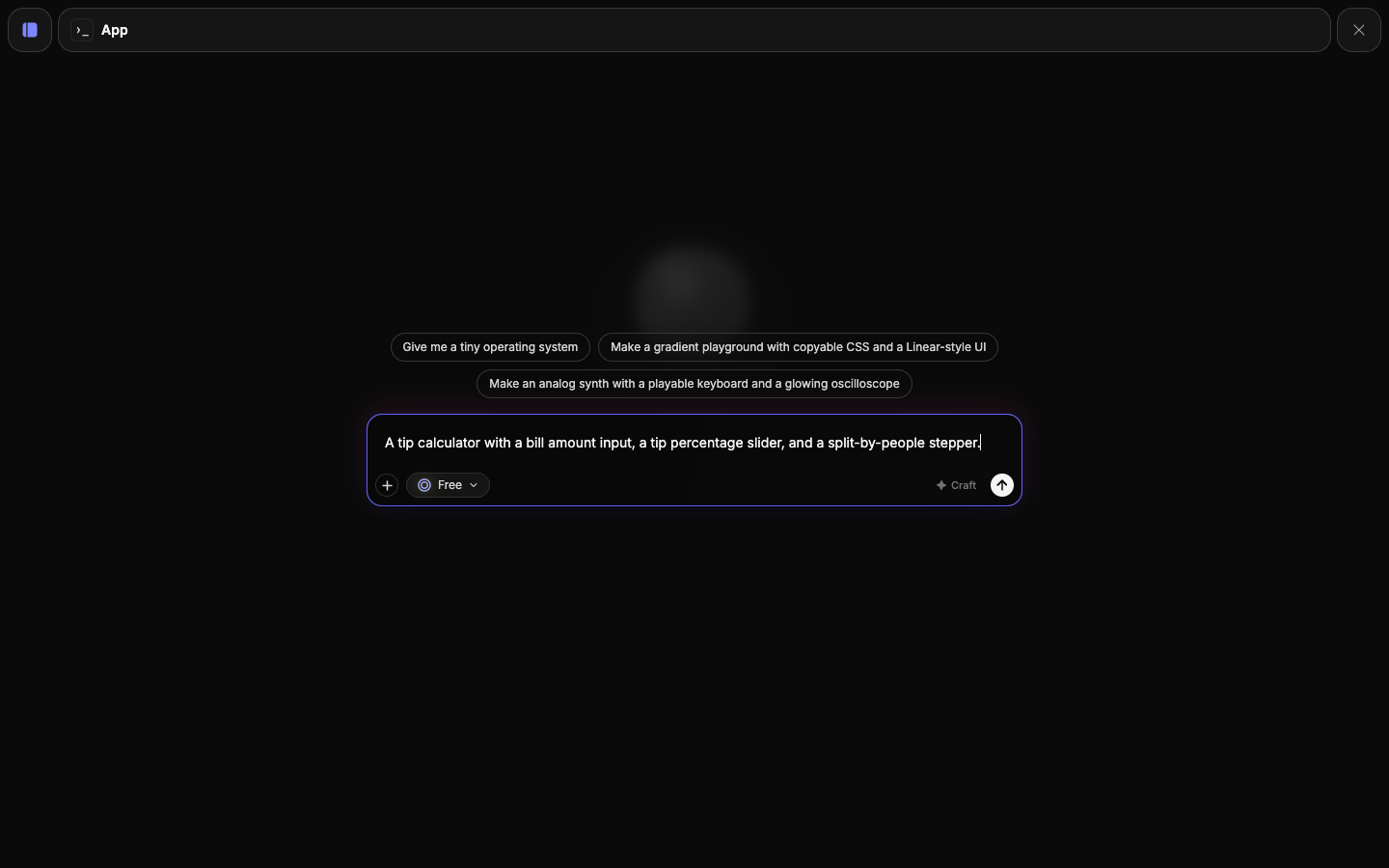
Before the first build, the placeholder reads "Describe what to build or change…" and a few starter prompts appear above it — click one to drop it into the composer. Once your app exists, the placeholder shifts to "Ask to change…": from then on, every prompt edits the running app rather than starting from scratch.
Good prompts are specific about behavior and look. After the first build, keep them incremental — describe one change at a time and let the app grow.
Craft
Not sure how to phrase something? Click Craft and the agent rewrites your rough prompt into a richer, more detailed one before you send it. If you preferred your original wording, Restore prompt puts it back.
Generation activity
When a build is running, the chat panel streams a live transcript of what the agent is doing — planning, writing code, then deploying a preview. A status line and progress indicator show the current step, often with an estimate of how long the preview will take.
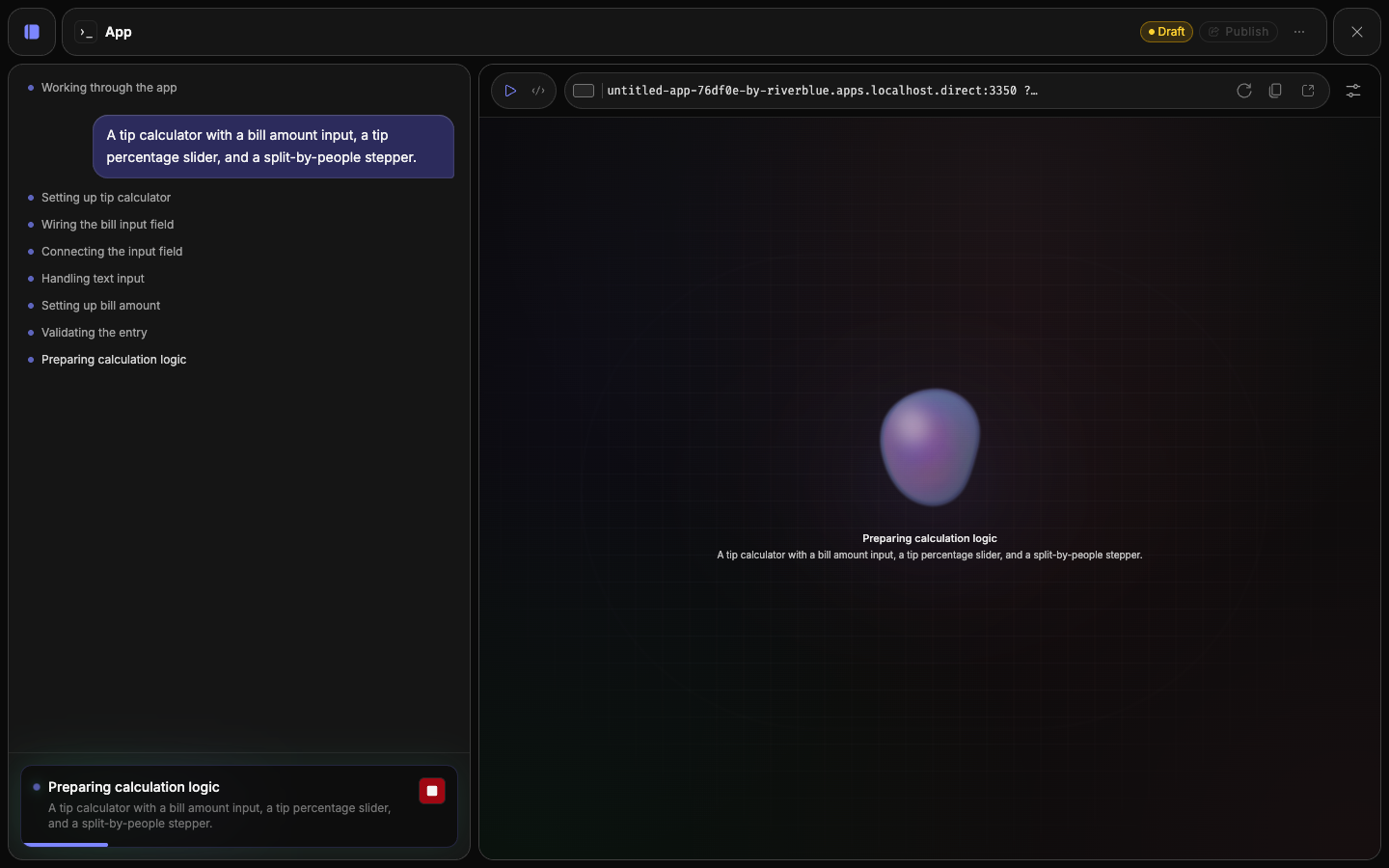
A Stop button cancels the run in progress. Stopping is safe — your previous working version stays intact.
Status: Draft, Changes, Live
A small pill on the node and in focus mode tells you where the app stands:
- Draft — never published.
- Changes — published, but the current version differs from what's live.
- Live — published and matching what's deployed.
This pill is read-only here; it's driven by what you do on the Publishing page.
Fix a runtime error in one click
If the running app throws an error, a Fix runtime error banner appears in the composer with a short summary. Click it and the agent loads a repair prompt describing the error, so you can send it straight back for a fix instead of debugging by hand.
Optional details
Sometimes the agent needs a bit more context to build the right thing. Rather than guess, it raises an Optional details card over the preview — a short questionnaire with a mix of fields (text, single- or multiple-choice, or a media picker).
Answer anything that's useful and leave the rest. Two buttons sit at the bottom:
- Use defaults — skip the questions and let the agent build with sensible assumptions.
- Build — submit your answers and start the build.
If you don't interact, the card accepts its defaults automatically after a few seconds and proceeds — so a questionnaire never blocks you.
Answering is always optional
The card exists to improve the result, not to gate it. Skipping it (or letting it time out) always produces a working app you can refine afterward.