Preview & focus mode
The full-screen workspace, the live preview, viewport sizes, and the actions tucked into the preview toolbar.
Your app always runs live — there's no separate "run" step. On the canvas, it renders in a framed preview inside the node. To work on it, you open focus mode.
Focus mode
Click into a node to open focus mode, a full-screen workspace with three areas:
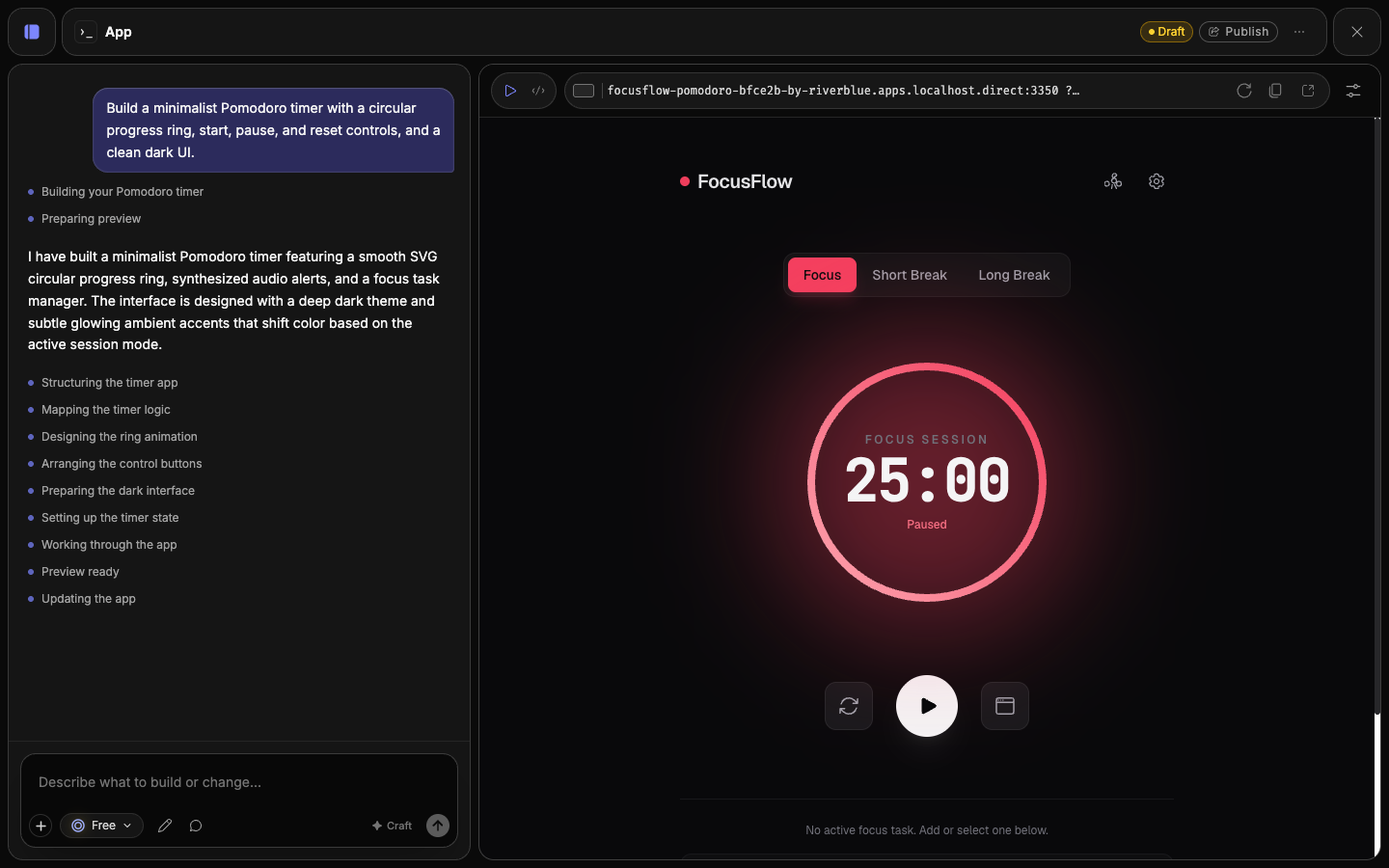
- Chat (left) — the running transcript of your prompts and the agent's work. Collapse it to give the preview more room.
- Preview (center) — your live app, with a toolbar above it.
- Inspector (right) — opens on demand for Edit content or Settings.
On smaller screens the layout compacts: chat moves into a bottom dock and the side panels tuck away, keeping the app itself front and center.
The preview toolbar
Above the preview sits the URL bar and its controls:
- The live URL of your app, or Not deployed before the first build.
- Reload the preview.
- Copy URL to share the current address.
- QR code — once published, scan to open the app on a phone.
- Open in new tab to view the app full-screen in the browser.
Viewport sizes
Cycle the preview between full width, tablet, and mobile to check how your app responds across screen sizes without leaving focus mode.
Preview and Code
Toggle between Preview (the running app) and Code (the editor). See Editing your app for what the editor can do.
More actions
The More actions menu in the top bar holds a few utilities:
- Copy the conversation as a Transcript, Markdown, or JSON, or grab diagnostic logs to report a problem.
- Download bundle — a
.zipof the app's source plus its transcript. - Unpublish — take a published app offline (see Publishing).
The preview is sandboxed
Your app runs in an isolated sandbox, separate from the Fuser canvas around it. That keeps the editor responsive and your app's code safely contained as you build.