Connecting inputs
Feed references, media, and data into your app through the node's sockets — or attach them right from focus mode.
Apps don't have to start from a prompt alone. Wire other nodes into an App node to steer its look, hand it media to use, or give it a data backend — the agent reads everything you connect.
The input sockets
An App node has three input sockets on its left edge:
- Inspiration — visual, video, or audio context that steers the app's look and feel. Use it for reference images, a moodboard, or a style you want matched.
- Assets — media the app should actually use: images, audio, or 3D to embed in the built app.
- Database — a shared backend the app can read from and write to. See Data & backends.
Drag an edge from any compatible node into the socket, and the agent picks it up on the next build.
Inspiration vs. Assets
Inspiration shapes how the app looks; Assets are what the app puts on screen. A reference photo of a UI goes into Inspiration; a logo you want displayed goes into Assets.
Add media from focus mode
You don't have to wire sockets by hand. In focus mode, the button in the composer adds media directly:
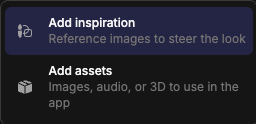
- Add inspiration — reference images to steer the look.
- Add assets — images, audio, or 3D for the app to use.
Either opens a picker — choose from your library or upload something new, and Fuser wires the media into the right socket for you.
Dynamic sockets
Your app's sockets aren't fixed. A generated app can declare its own typed inputs and outputs — and you can ask for them directly. Tell the agent you want a socket to take a value in or send a result out, and it adds one. The new sockets appear on the node like any other, so an App node can sit in the middle of a larger graph, not only at the end of one.