Publishing & versions
Take an app live, move between versions, roll back, and understand the plan limits on published apps.
Publishing turns your private draft into a public app anyone can open. It takes one click, and it's reversible.
What publishing does
Click Publish and Fuser promotes the version you're viewing to production and opens public access, so anyone with the link can load it. The status pill flips to Live.
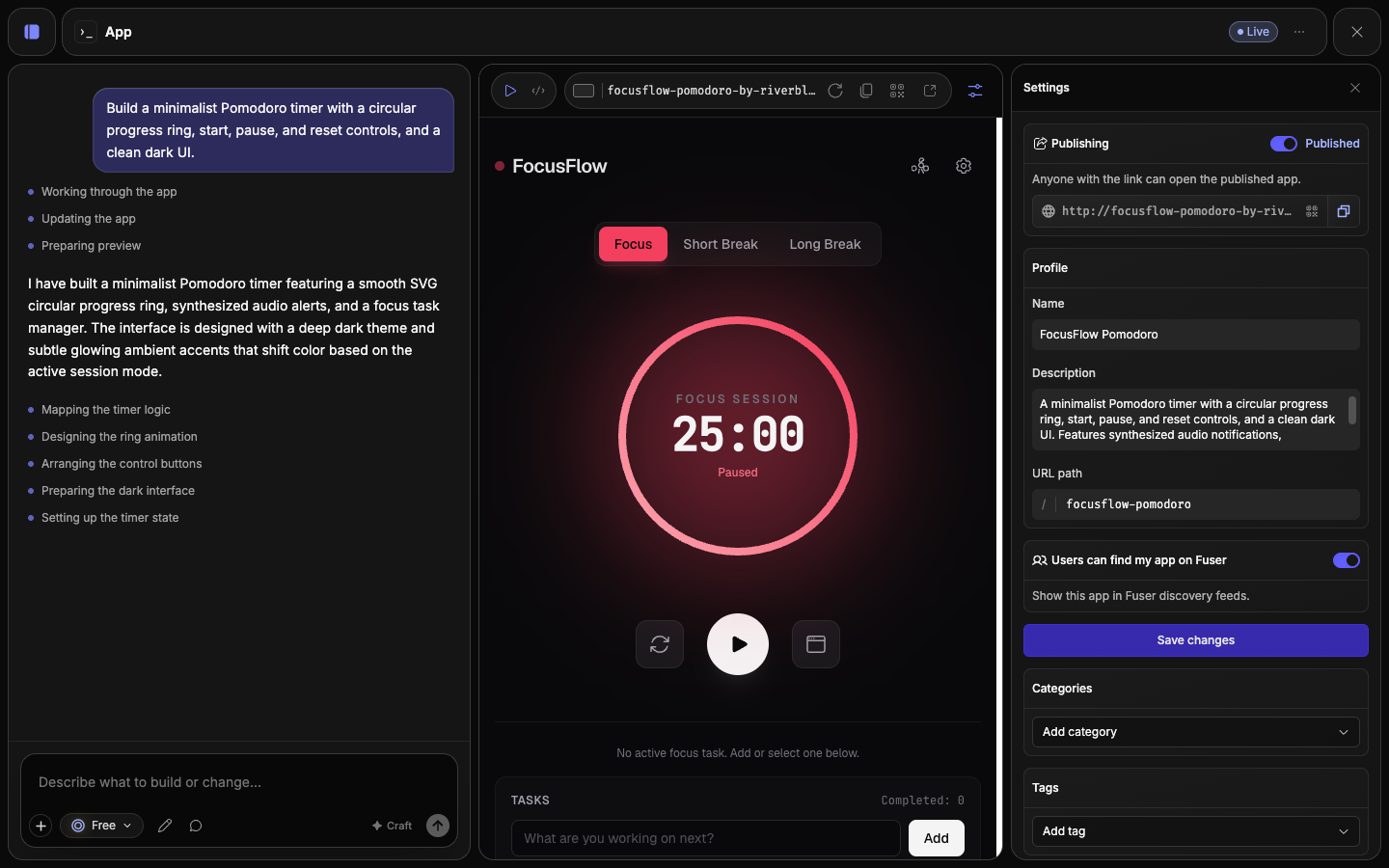
The publish button tracks the app's state:
- Publish — the app has never gone live.
- Update — it's live, but you've edited since. Click to push your changes.
- Published — live and current. Hover to reveal Unpublish.
Unpublish takes the app offline immediately. It deletes nothing — your code and full version history stay intact, and you can publish again anytime.
Draft, Changes, Live
The status pill compares what you're viewing against what's public:
- Draft — never published.
- Changes — published, but the version you're viewing differs from what's live, because you've edited or rolled back to an older version.
- Live — published, and what you see is exactly what your audience sees.
Version history
Every build adds a version to the app's history. The version switcher in focus mode steps through them and shows your position — for example, "2 / 5":
- Step back to roll the preview to an earlier version.
- Step forward to return toward the latest.
Moving between versions is non-destructive — it's navigation, not deletion. The first version can't go back; the latest can't go forward.
Versions don't roll back your data
The switcher moves the app's code between builds. It does not roll back a connected Resource: a database and everything saved in it stay as they are. Returning to an earlier version won't undo data your app has already written.
Publishing while rolled back
Publishing always makes the version you're viewing public. So if you roll back to an older version and then publish, that older version becomes live. The status reads Changes whenever you're viewing a version that isn't live — step forward to the latest before publishing if you want your newest work out.
Plans & publish limits
Build as many apps as you like. The limit is on how many you can keep published at once:
| Plan | Published apps |
|---|---|
| Free | 1 |
| Indie | 5 |
| Professional | Unlimited |
| Teams | Unlimited |
At the limit, the publish control becomes Upgrade to publish and notes that the "Published app limit reached." To continue, unpublish an existing app to free a slot, or upgrade your plan. New accounts start with a 30-day Professional trial, so you have room to explore before the limits apply.