Inputs and outputs
Choose what people can change in your recipe and which results it returns.
Inputs are controls such as a prompt, reference image, or aspect ratio. Outputs are results such as an image or text. You choose what to expose; everything else stays inside the flow.
Connect the interface
Select the recipe and click Open recipe, or press E. Inside, Input
sends values into the flow; Output collects the results it returns.
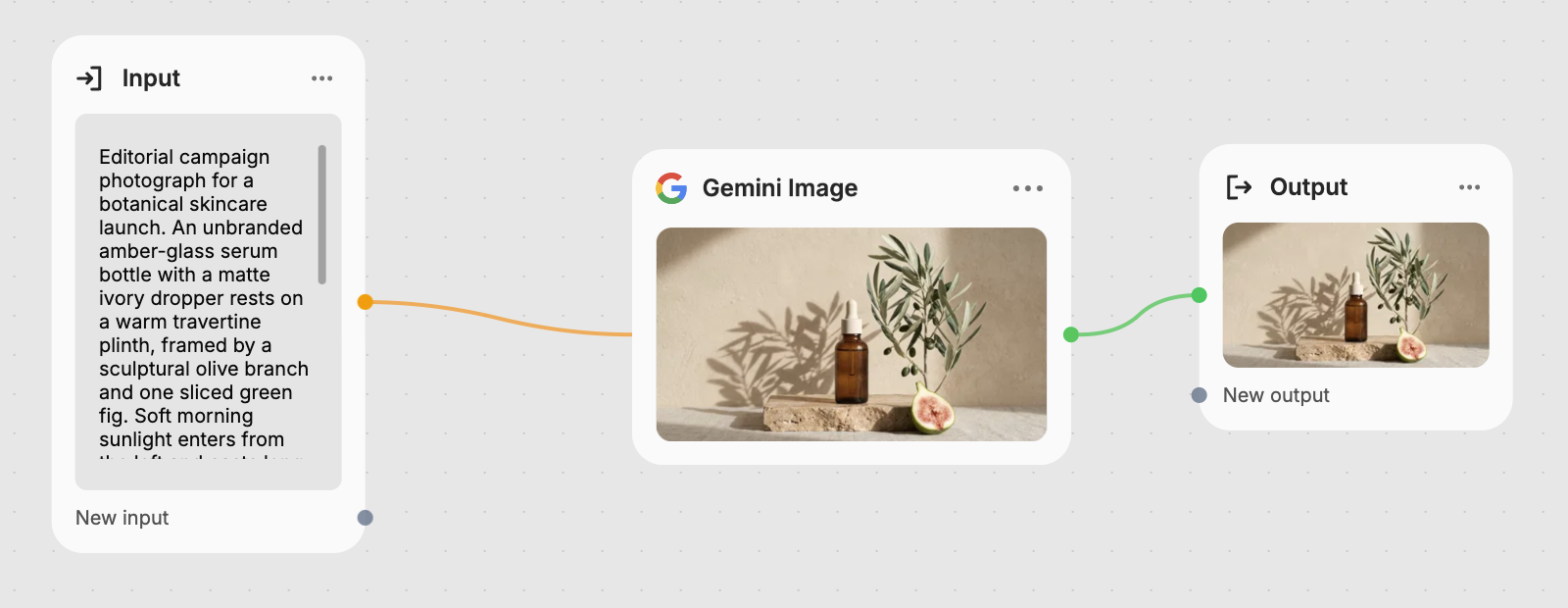
Add an input
Drag New input on Input to a property, such as a model's prompt. Fuser creates a named control for it.
Add an output
Drag an internal result to New output on Output. Repeat for each result you want to expose.
Try the interface
Set useful starting values, then click Preview recipe and run it. Check the controls and results; return to adjust the wiring.
A new input inherits the connected property's control: dropdown choices, slider range, or media type. One input can feed several compatible properties that should share a value.
Connect inputs through the working nodes. A direct connection from Input to Output isn't supported.
Name and arrange controls
The panel lists Inputs and Outputs in their display order. Click a row's caret to expand its name and description fields.
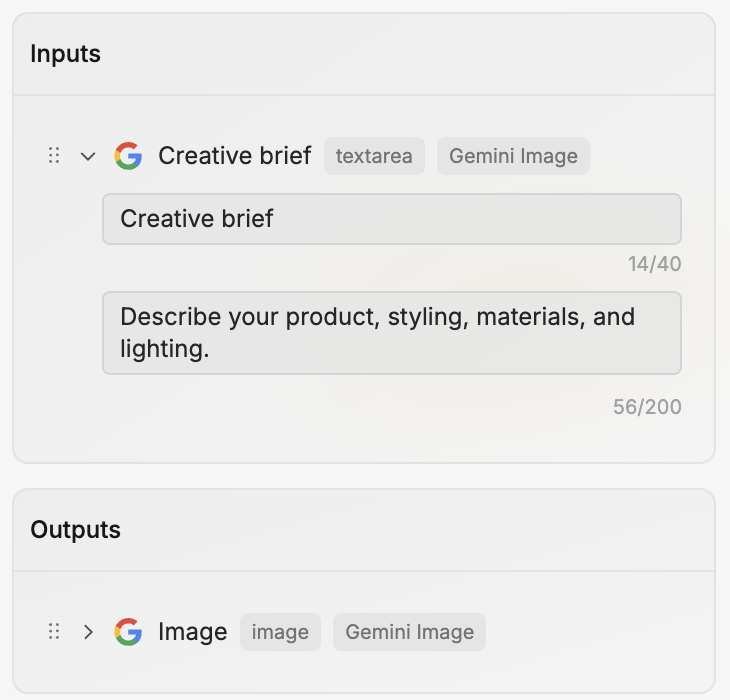
Name the choice or result: “Reference image” or “Finished portrait.” Use descriptions to explain what to provide. Names allow 40 characters; descriptions allow 200.
| Control | What it does |
|---|---|
| Drag handle | Reorders the input or output. |
| Zoom to node | Takes you to its Input or Output node. |
| Remove | Removes the exposed input or output and its connections. |
To change a control's type or allowed values, change its connection.
Set useful starting values
New inputs copy the connected property's current value. Edit it on Input or in Preview recipe to set the starting value.
Newly placed recipes use these saved values. A sample image and prompt, for example, let someone try a portrait recipe before adding their own reference.
Run the flow to produce example outputs before publishing. Inputs and outputs
need values; 0 and an off switch count as values.
On a placed recipe, Reset inputs restores its version's starting values. See Running recipes for input controls and reset behavior.
Choose the right controls and results
Recipes support text, number and seed fields, sliders, dropdowns, switches, and media. Multiple-image inputs offer Add image, Replace, and Remove. Other types display as attachments.
Saving or publishing requires at least one output. Expose useful results: an image, a caption, or related outputs. A Creative Code sketch must be the only output when included.
Reconnect when replacing a node
When replacing an internal node, reconnect existing controls where they serve the same purpose. Disconnecting leaves the control available; Remove deletes it and its connections.
Reusing controls helps preserve connections on canvases using the recipe. See Publishing and versions.