Publishing & versions
Save your recipe, publish it for others, and choose when to update the versions used in your projects.
Publish recipes for others to find and run. Placed recipes use specific flow versions, so you choose when updates reach your projects.
Saving and publishing
A new recipe starts unpublished. Save while building, then publish when its controls and starting results are ready to share.
| Control | When you use it | What it does |
|---|---|---|
| Save changes | The recipe is unpublished | Saves your changes while keeping the recipe out of the gallery. |
| Publish recipe | You're ready to share an unpublished recipe | Makes the recipe available to the community. |
| Update recipe | You've changed a published recipe | Makes those changes available as an update. |
| Up to date | A published recipe has no pending changes | Shows that there's nothing new to publish. |
Saving flow changes creates a version for your projects. Listing details can be incomplete, but you need a connected output and valid nodes and connections.
Name or description changes don't create a flow version. Publishing an unchanged saved flow can also retain its version number.
Prepare a recipe for publication
Test the starting experience
Add a Name and Description, set required inputs, and run the flow to fill its outputs. Use Preview recipe to check the starting experience.
A product-photo recipe, for example, might include a sample image, prompt, and finished result.
Complete the listing
Add a Thumbnail, up to three Categories and up to five Tags to help people find the recipe.
The checklist requires a connected output, values for required inputs and outputs, and an account name or username. Follow any additional instructions for your flow's nodes.
Publish the recipe
Click Publish recipe. Resolve any blockers from the readiness check and retry.
Use Copy link to share it. It can also appear in the Gallery.
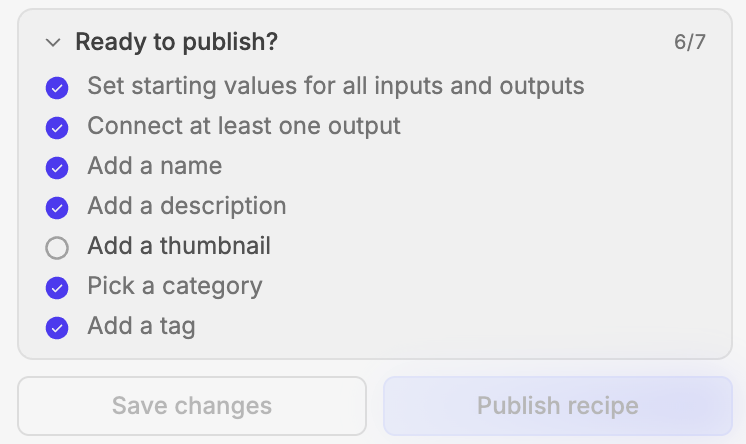
Here, Add a thumbnail remains incomplete. Finish the checklist to publish.
If a check times out, check your connection and retry. If another edit created a newer version, review it before publishing again.
Choose the version a project uses
Select a recipe's Version controls. Pinned to v… shows its current version; Update to v… switches to the latest available version.
With multiple versions, All versions lets you choose any available one, including earlier versions. Private saved versions you can access are marked unpublished.
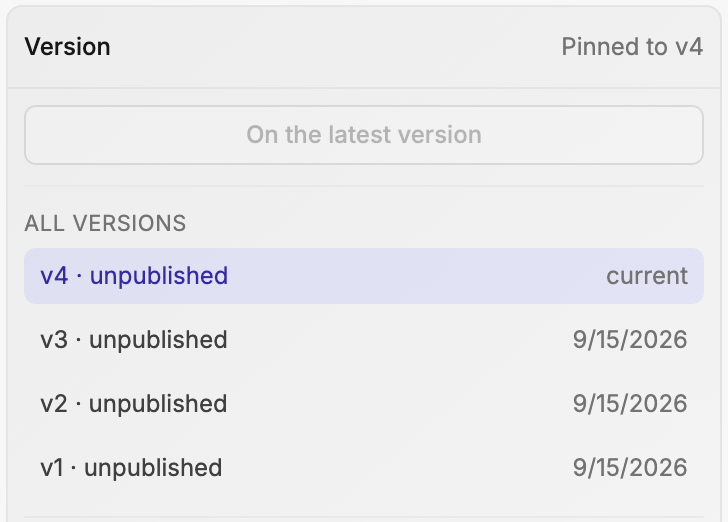
You can keep v2 in a finished project while trying v3 elsewhere. Choosing a version changes that placement's flow without republishing the recipe.
Names, descriptions, listing details, and control labels are shared across versions. Choosing an older flow doesn't restore older labels.
Update placed recipes
After saving or publishing a newer version, Fuser may offer these updates, depending on your project and eligible placements:
- Update this node updates the recipe you opened.
- Update all in this project updates the eligible placements in the current project.
- Update all updates the eligible placements offered by the dialog.
- Not now leaves them on their current versions.
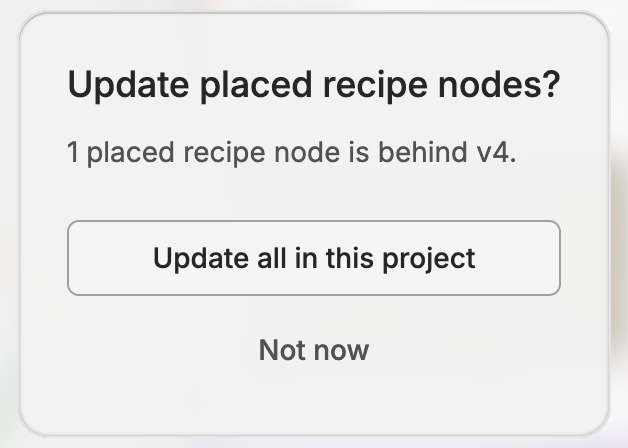
You can update later from the Version controls.
Share or unpublish
Copy link gives you a stable link across updates. The gallery lists the latest public version.
Creators can Unpublish to remove the recipe's versions from community listings, while retaining access to edit and republish.
Unpublishing also changes access
People without permission lose access to the contents, potentially affecting recipes already placed in their projects. Use Unpublish to withdraw access.