Running tools
How Live tools update as you work, how to run Cloud tools, and how to keep a tool's result.
How a tool runs depends on the chip in its header.
Live tools
Live tools have no Run button. They run in your browser whenever an input or control changes, and the result updates as you drag a slider.
Changes flow down a chain. Wire an image into Pixelate, then into RGB split glitch, and dragging a Pixelate slider updates both. Tools you can see update while you drag; tools scrolled off screen catch up when you let go.
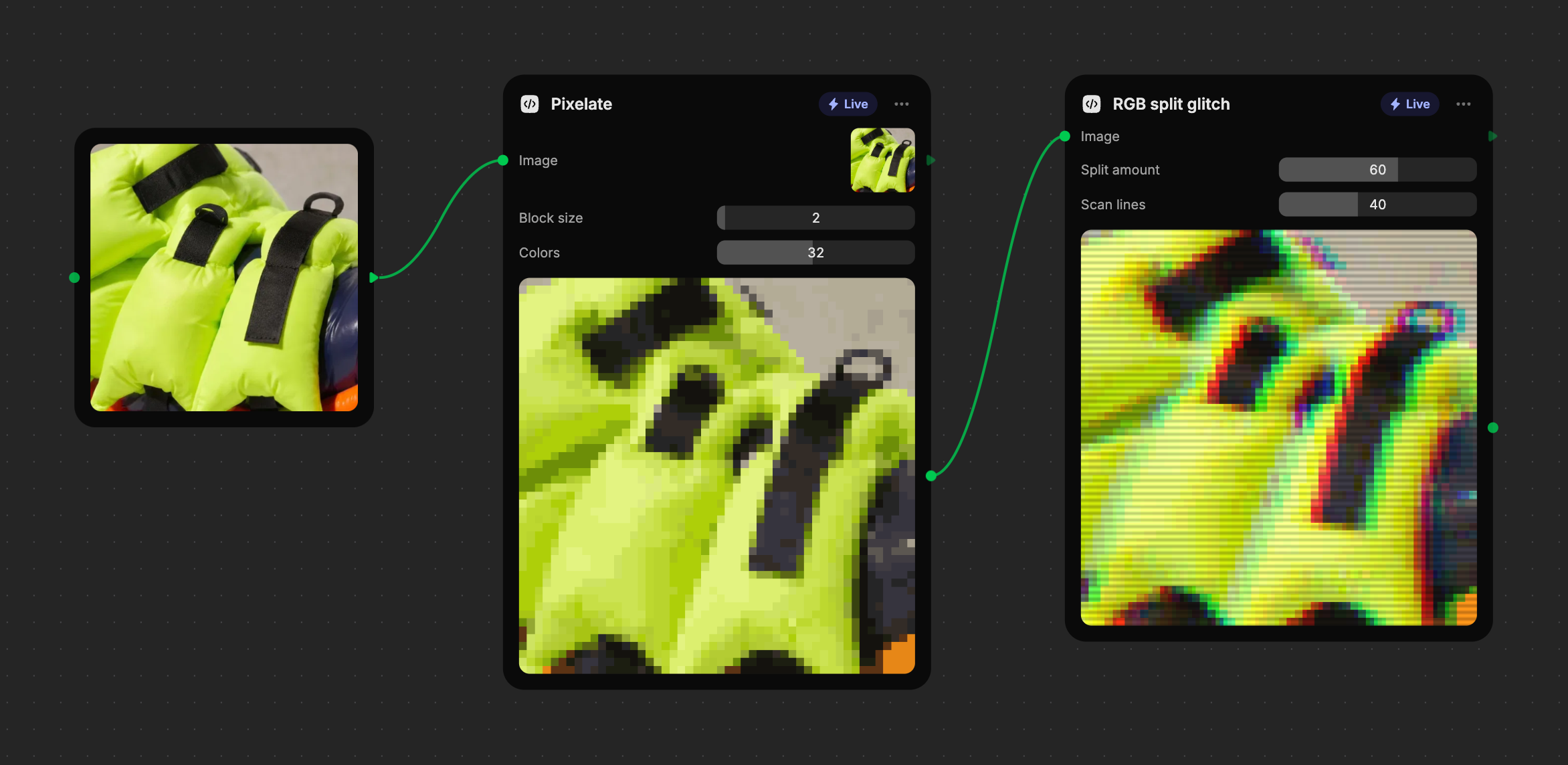
While you adjust controls, Live tools work on a preview-sized copy of large images so they stay fast. When the result is saved, dragged out, or used by another node, the tool runs again on the full-size image, up to about 16 megapixels. Sizes in a tool are relative to the image, so the full-size result matches the preview.
Status on the result
| Status | What it means |
|---|---|
| Running… | The tool has been working for a moment. The timer shows how long. |
| Updates when you let go | This tool, or one before it, takes a while to run, so it waits until you finish dragging. |
| Failed · reason · Retry | The run hit a problem. Click Retry, or edit the tool to fix it. |
Cloud tools
Cloud tools use AI to understand or process content: describing an image, reading the text in it, finding objects, removing a background, or making a depth map. They only run when you ask.
Connect the inputs
Wire in what the tool needs. If an input is missing, Fuser tells you which one and doesn't spend any credits.
Check the price and run
Select the node. The Run button in its toolbar shows the minimum
cost, such as 7+; the plus means a run that makes more AI calls costs
more. Click it, or press ⌘/Ctrl+Enter.
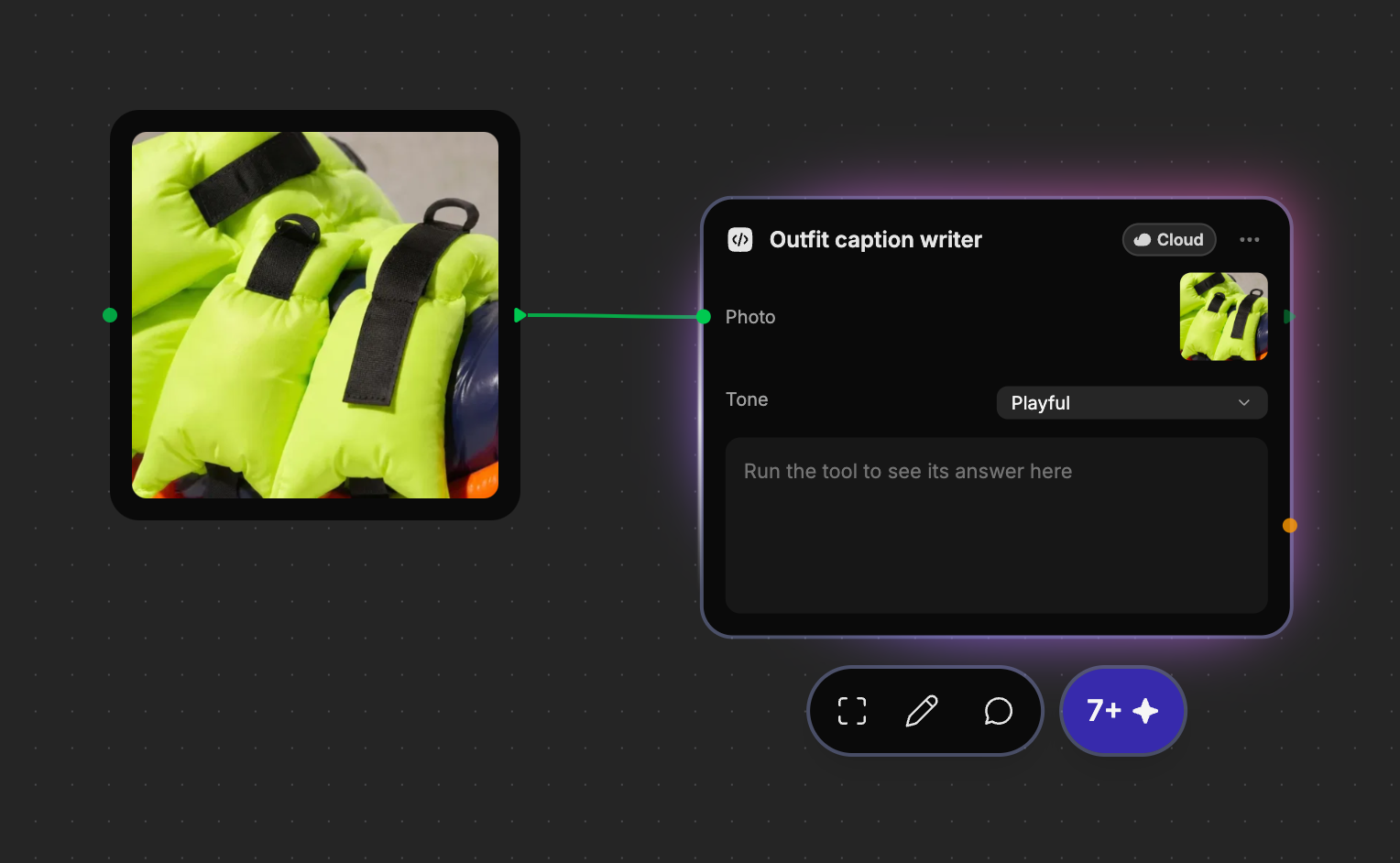
Read the result
Text and data appear in the result box. An image result is saved to your Assets automatically.
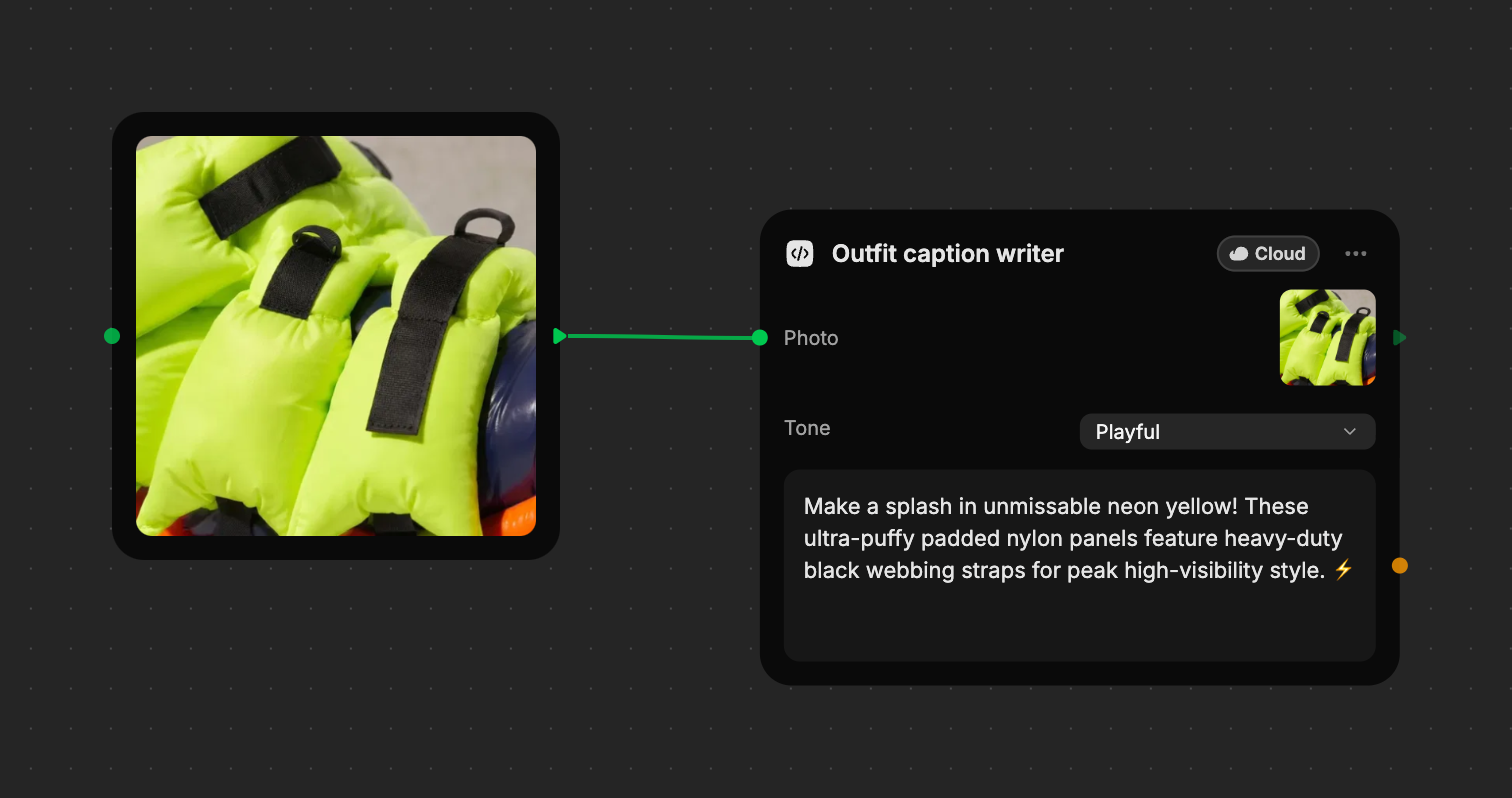
When you change an input or control, the last result dims and shows Out of date. Run again to update it.
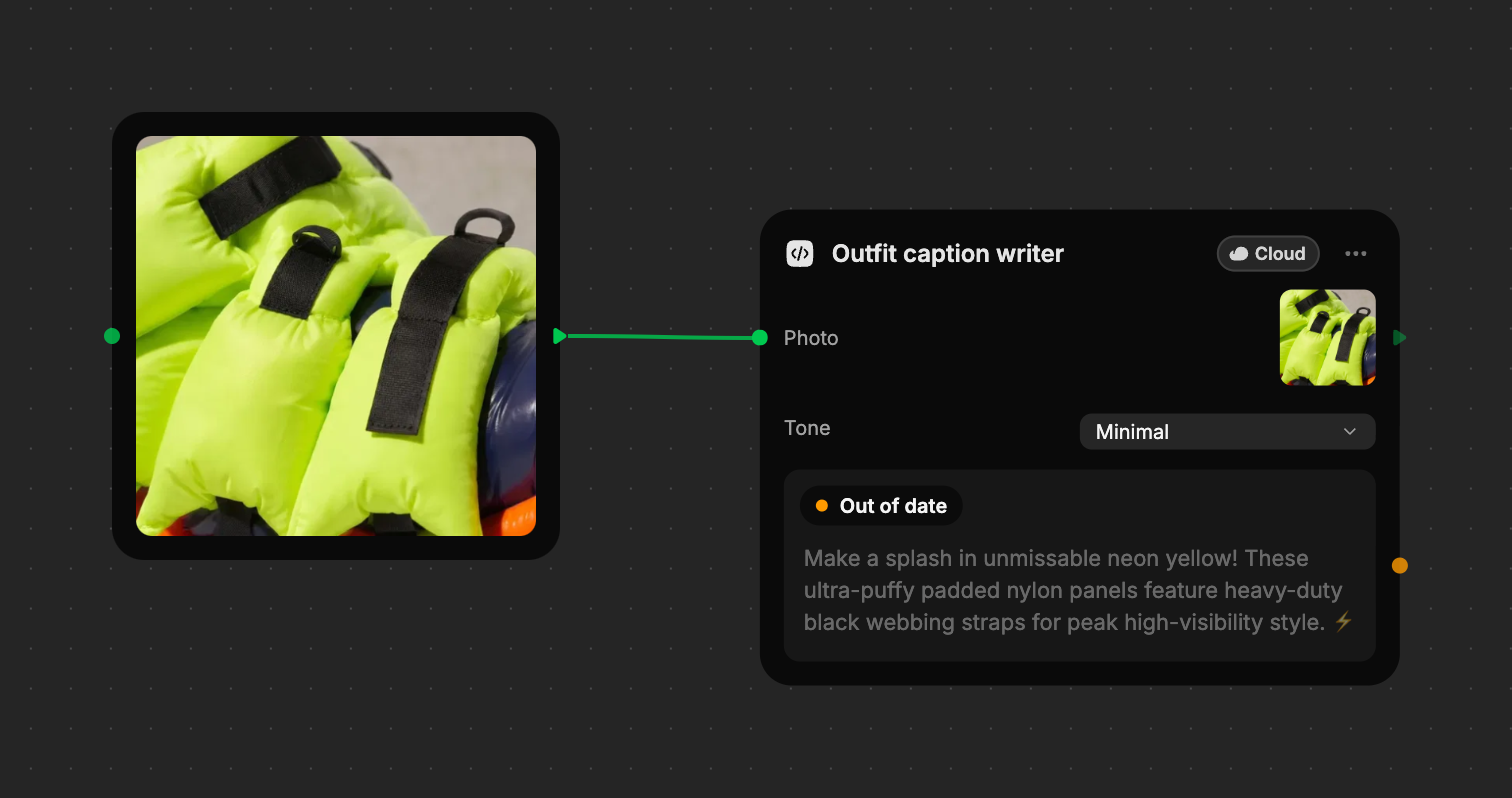
Fuser remembers a Cloud tool's last five results. Change a setting back to values you already ran and the matching result returns straight away, marked Up to date, with no new run and no charge.
Use a result in other nodes
Wire a tool's result into any compatible node, such as a generator, a chat, or another tool. When that node runs, Fuser saves the tool's full-size result as a file and passes it along. The file is added to your Assets once the run succeeds.
A Cloud tool's result only flows on while it's current. If it's Out of date, run the tool first.
When you run several nodes at once, built tools run with them: Live tools hand over their latest result, and Cloud tools run and charge credits as if you'd pressed Run.
Keep a result
Hover over a tool's result to see its actions in the top-right corner. Save and drag are for Live image, video, and audio results; a Cloud tool's image result is already in your Assets.
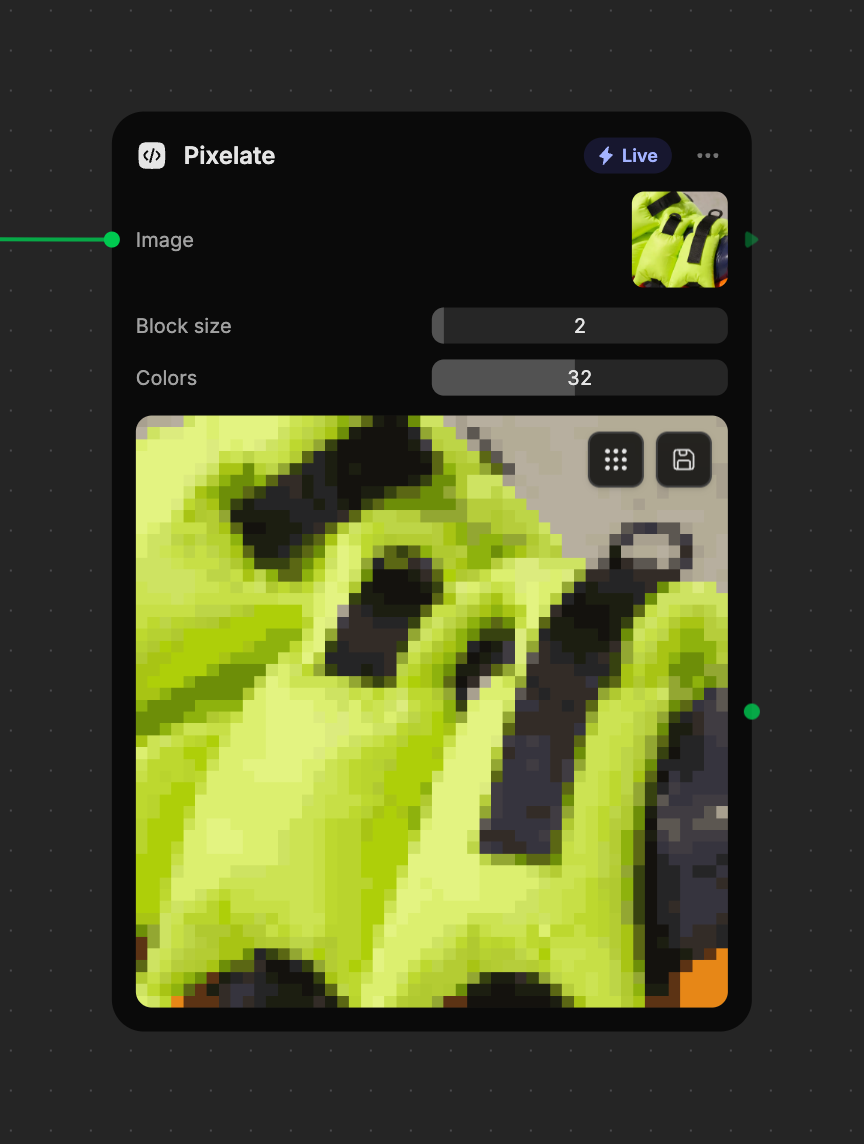
| Action | What it does |
|---|---|
| Save to assets | Saves the full-size result to your Assets. A check confirms it's saved. |
| Drag onto the canvas to copy | Drag the handle onto the canvas to create an Image, Video, or Audio node with the result. The file is saved to Assets too. |
| Download | For text and data results: downloads them as a file. |
Saving and dragging the same result share one file, so you won't get duplicates in Assets.
Live results aren't files until you need them
A Live result is recomputed wherever the project is open, so it doesn't fill your Assets as you experiment. It becomes a file only when you save it, drag it out, or another node uses it.