Overview
Describe a small tool in plain words and Fuser builds it as a node, with its own inputs, controls, and result.
A Tool is a node you describe in plain words. Fuser writes it, tests it, and turns it into a working node with inputs, controls, and a result.
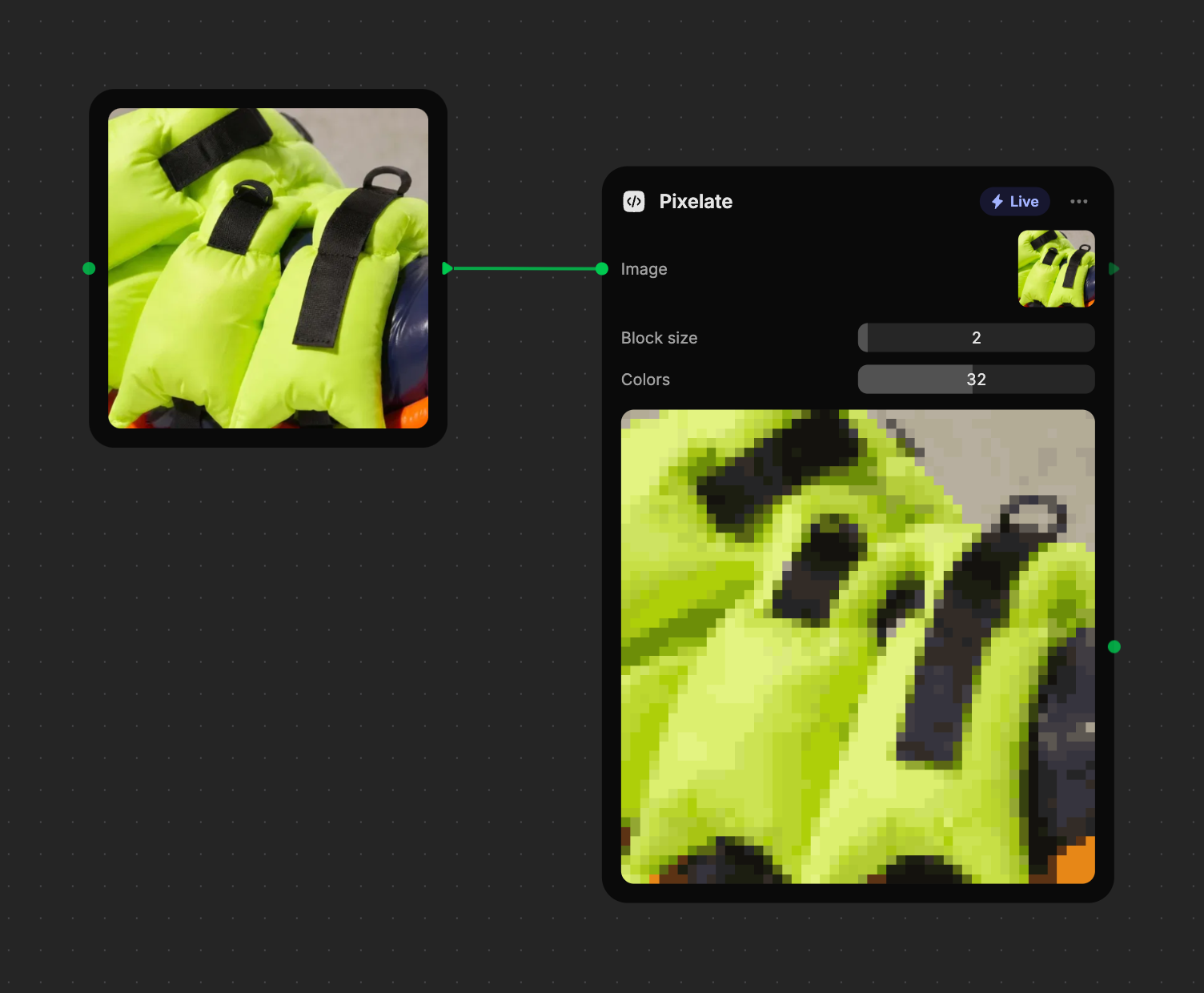
Ask for “Pixelate the image, with a slider for block size and a slider for the number of colors” and you get a Pixelate node: wire in an image, drag a slider, and watch the result update as you drag.
What tools are good at
Tools handle the small, precise jobs between your other nodes:
- Filters and looks — pixelate, posterize, halftone, grain, color grading.
- Layout and text on media — captions, borders, before/after cards, contact sheets.
- Video and audio edits — trimming, reversing, joining, picking a frame.
- Measuring and converting — word counts, color palettes, subtitles from text, details about a 3D model.
- Understanding content — describing an image, extracting text, or finding objects, using AI in the cloud.
Live and Cloud tools
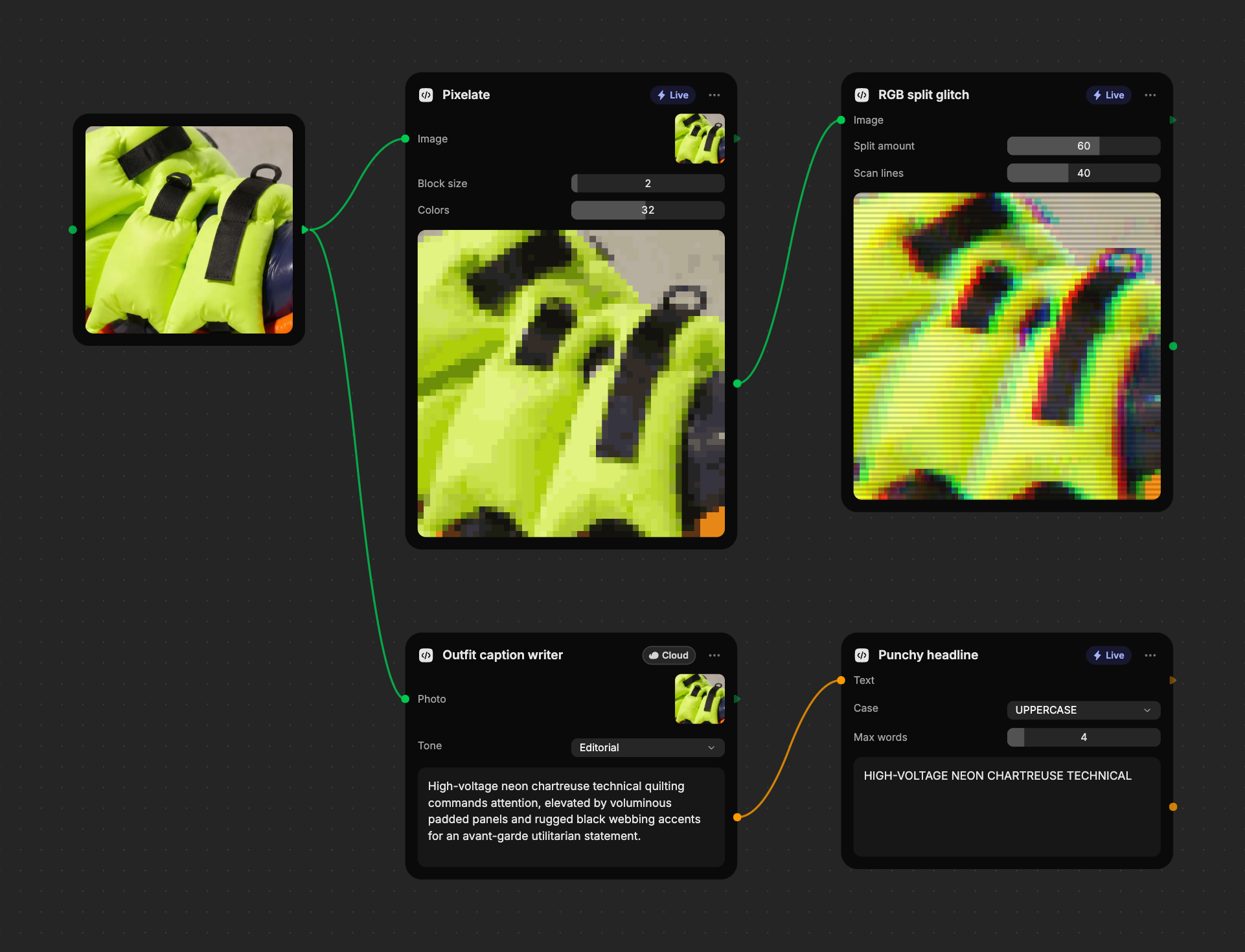
Every built tool shows a chip in its header that tells you how it runs.
| Chip | How it runs | Cost |
|---|---|---|
| Live | Runs instantly in your browser. The result updates whenever an input or control changes, even while you drag a slider. | Free. |
| Cloud | Uses an AI model to understand or process content, so it runs on Fuser's servers. It only runs when you press Run. | Credits per run, shown on the Run button, such as 7+. |
You don't choose the mode. Fuser picks it from what the tool needs to do: anything that needs an AI model to look at the content is a Cloud tool, and everything else is Live.
Reuse what you build
Every tool you build is saved automatically to the Tools tab of the Library panel. Place it in any project with a click or a drag. In a team workspace, everyone in the workspace can use it.
Tools also work inside recipes, so a recipe can resize, caption, or analyze what its models produce.
What tools can't do
Tools work on what you give them. They can't create new images, video, speech, or music from scratch, edit or export 3D models, or reach websites. If you ask for one of these, the node explains why in a short note and keeps your request so you can rephrase it. For new media, use a generator node.