Editing and versions
Change a tool by describing what to change. Each edit is saved as a new version linked to the one it came from.
You change a tool the same way you built it: by describing it. Ask for a new control, a different look, or a fix, and Fuser rebuilds the tool in place.
Edit a tool
Open the edit box
Hover or select the tool and click Edit tool in its toolbar. A box opens at the top of the node: Describe the change to make.
Describe the change
Write what should be different, for example “Add a switch to keep the original colors” or “Make the blocks round.” You don't need to repeat the original request.
Generate
Click Generate
or press ⌘/Ctrl+Enter. The node builds and tests the new version,
then shows it. Click Cancel or press Escape to close the box without
changing anything.
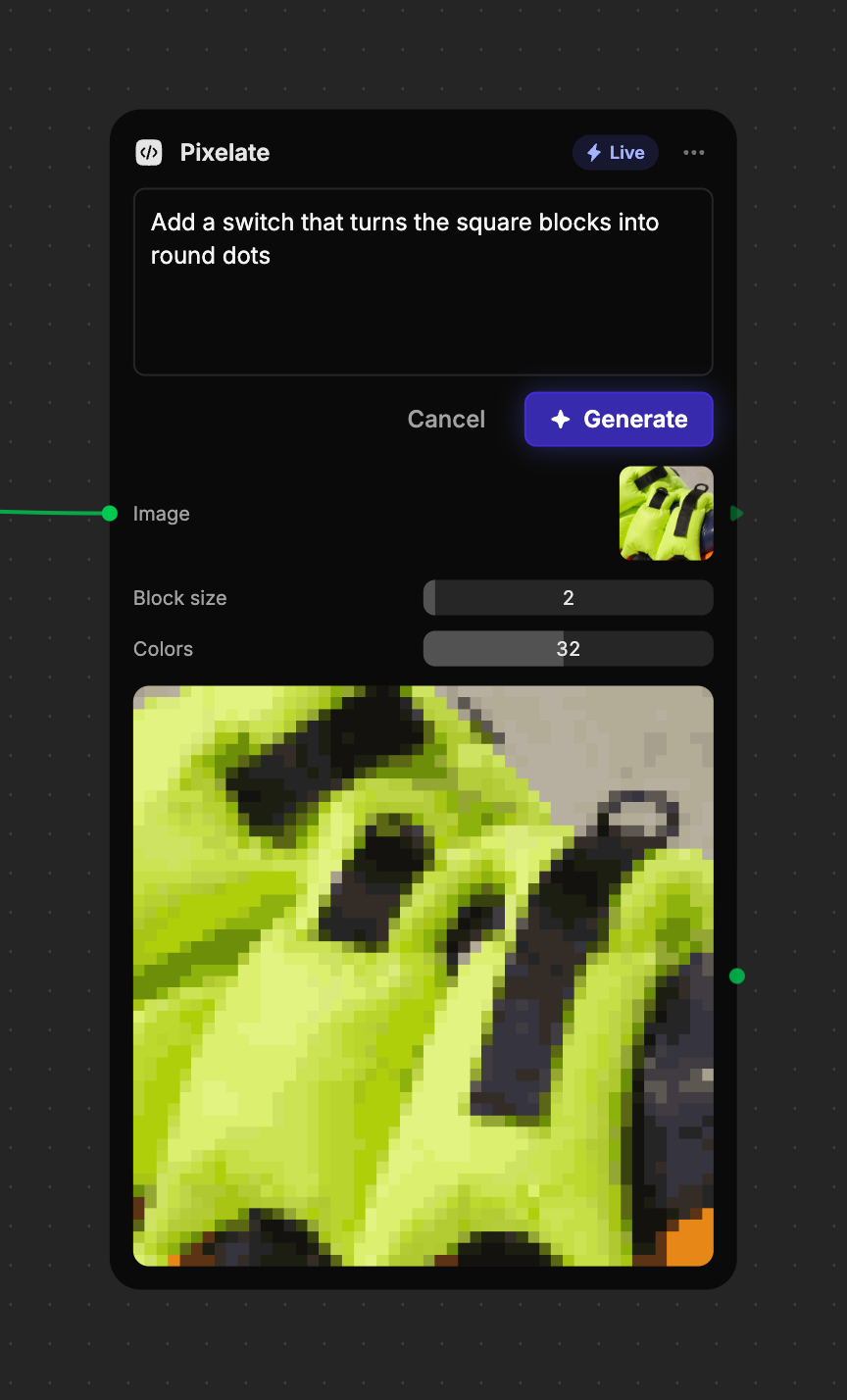
Fuser also tells the AI what's wired into the tool and, if a Live tool's last run failed, what went wrong. “Fix the error” is often enough.
What carries over
- Control values — a control that keeps its name keeps your value. If the old value no longer fits, for example it's outside a new slider range, it resets to the new default.
- Connections — wires stay on inputs that still exist with the same kind. Wires into removed or changed inputs are disconnected.
- The node's name — if you renamed the node, the edit keeps your name.
An edit can change how a tool runs. Asking a Live tool to describe what's in the image makes it a Cloud tool, and the chip in its header changes to match.
Undo an edit
Press ⌘/Ctrl+Z once to return to the previous version, including its
controls and any Cloud result it had. Redo brings the edit back.
Versions
An edit never overwrites the tool it came from. Each successful edit is saved to the Tools library as a new version, numbered one higher than the version you edited: edit v1 and you get v2.
Editing changes only the node you edited. Other copies of the tool on your canvases, and the earlier versions in the library, keep working as they were. To use the new version elsewhere, place it from the library.