# Running tools (https://docs.fuser.studio/docs/tools/running)
How a tool runs depends on the chip in its header.
## Live tools [#-live-tools]
Live tools have no **Run** button. They run in your browser whenever an input
or control changes, and the result updates as you drag a slider.
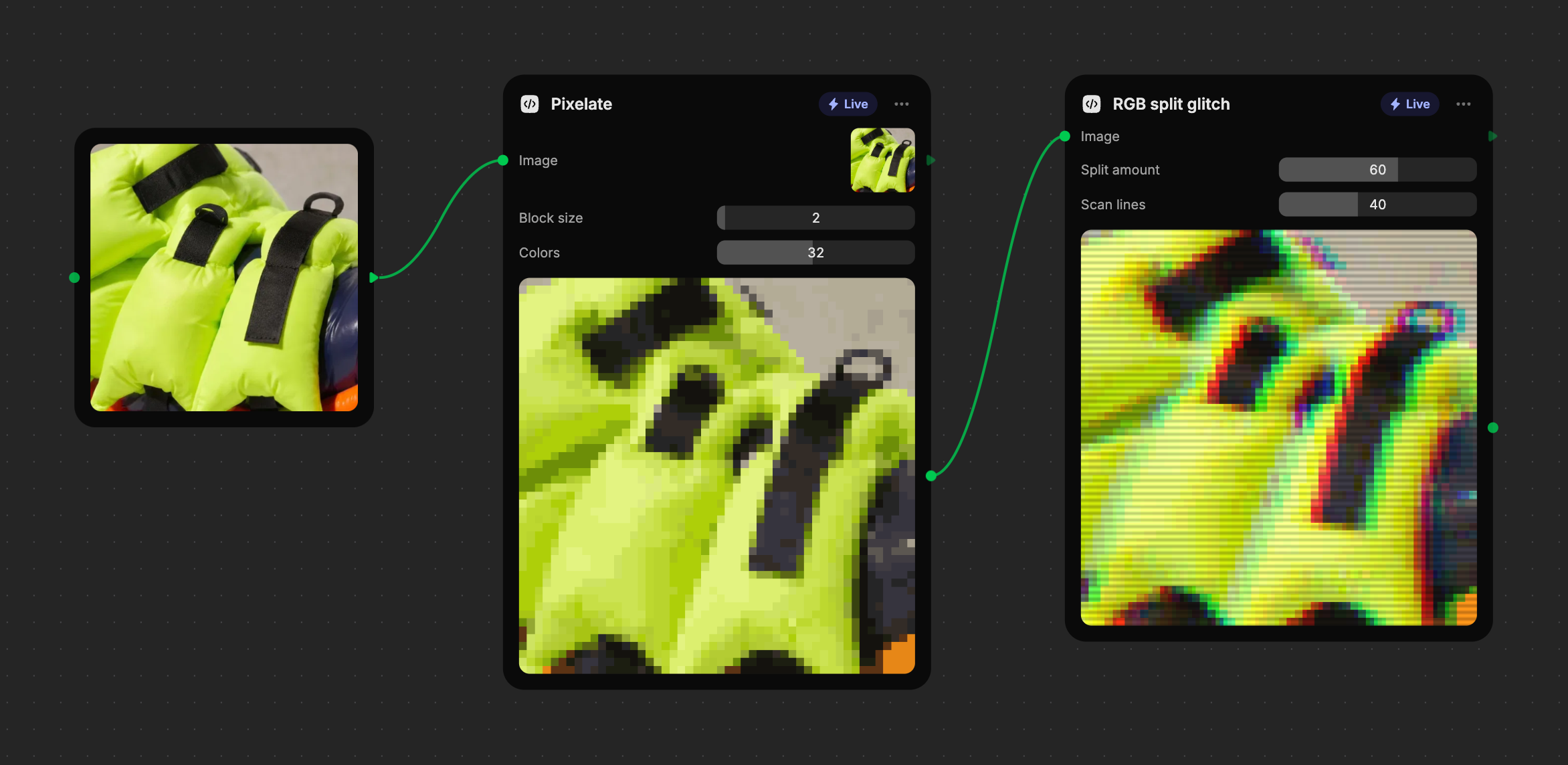
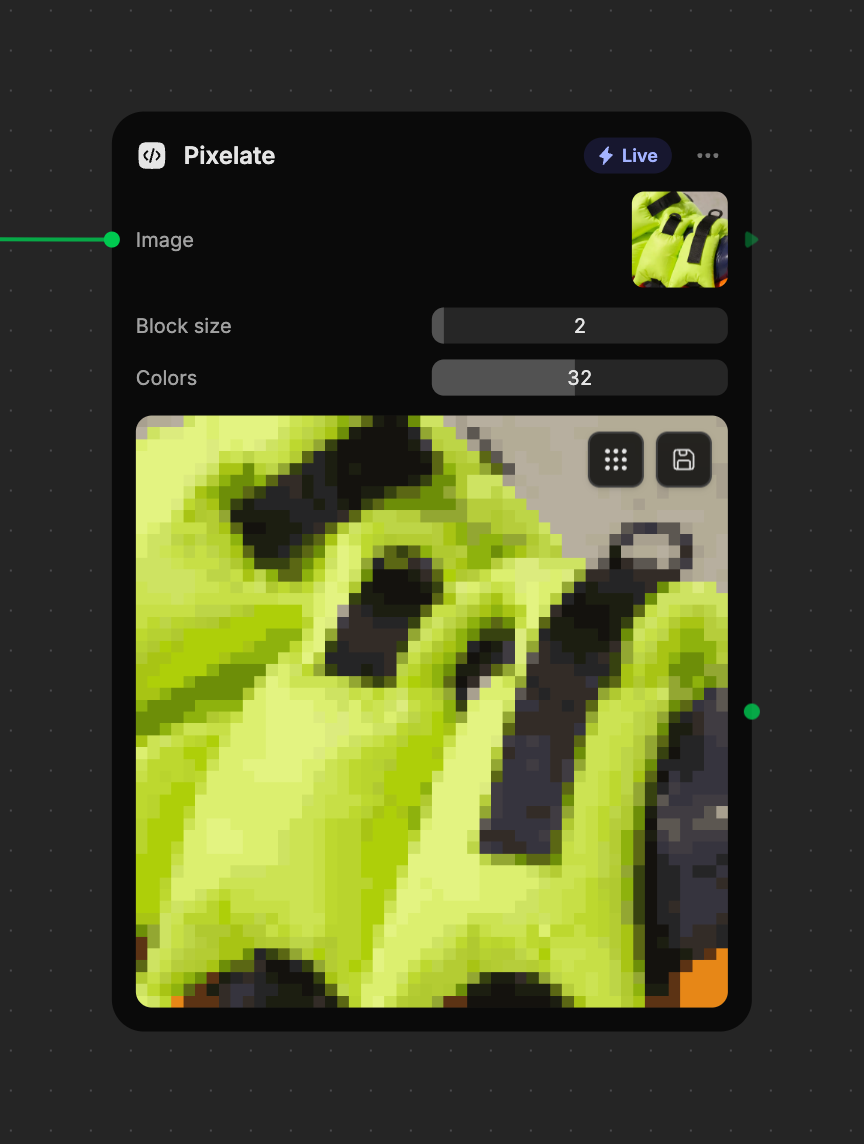
Changes flow down a chain. Wire an image into **Pixelate**, then into
**RGB split glitch**, and dragging a Pixelate slider updates both. Tools you can see
update while you drag; tools scrolled off screen catch up when you let go.
While you adjust controls, Live tools work on a preview-sized copy of large
images so they stay fast. When the result is saved, dragged out, or used by
another node, the tool runs again on the full-size image, up to about 16
megapixels. Sizes in a tool are relative to the image, so the full-size result
matches the preview.
### Status on the result [#status-on-the-result]
| Status | What it means |
| --------------------------- | ------------------------------------------------------------------------------------------ |
| **Running…** | The tool has been working for a moment. The timer shows how long. |
| **Updates when you let go** | This tool, or one before it, takes a while to run, so it waits until you finish dragging. |
| **Failed · reason · Retry** | The run hit a problem. Click **Retry**, or [edit the tool](https://docs.fuser.studio/docs/tools/editing.md) to fix it. |
## Cloud tools [#-cloud-tools]
Cloud tools use AI to understand or process content: describing an image,
reading the text in it, finding objects, removing a background, or making a
depth map. They only run when you ask.
### Connect the inputs [#connect-the-inputs]
Wire in what the tool needs. If an input is missing, Fuser tells you which
one and doesn't spend any credits.
### Check the price and run [#check-the-price-and-run]
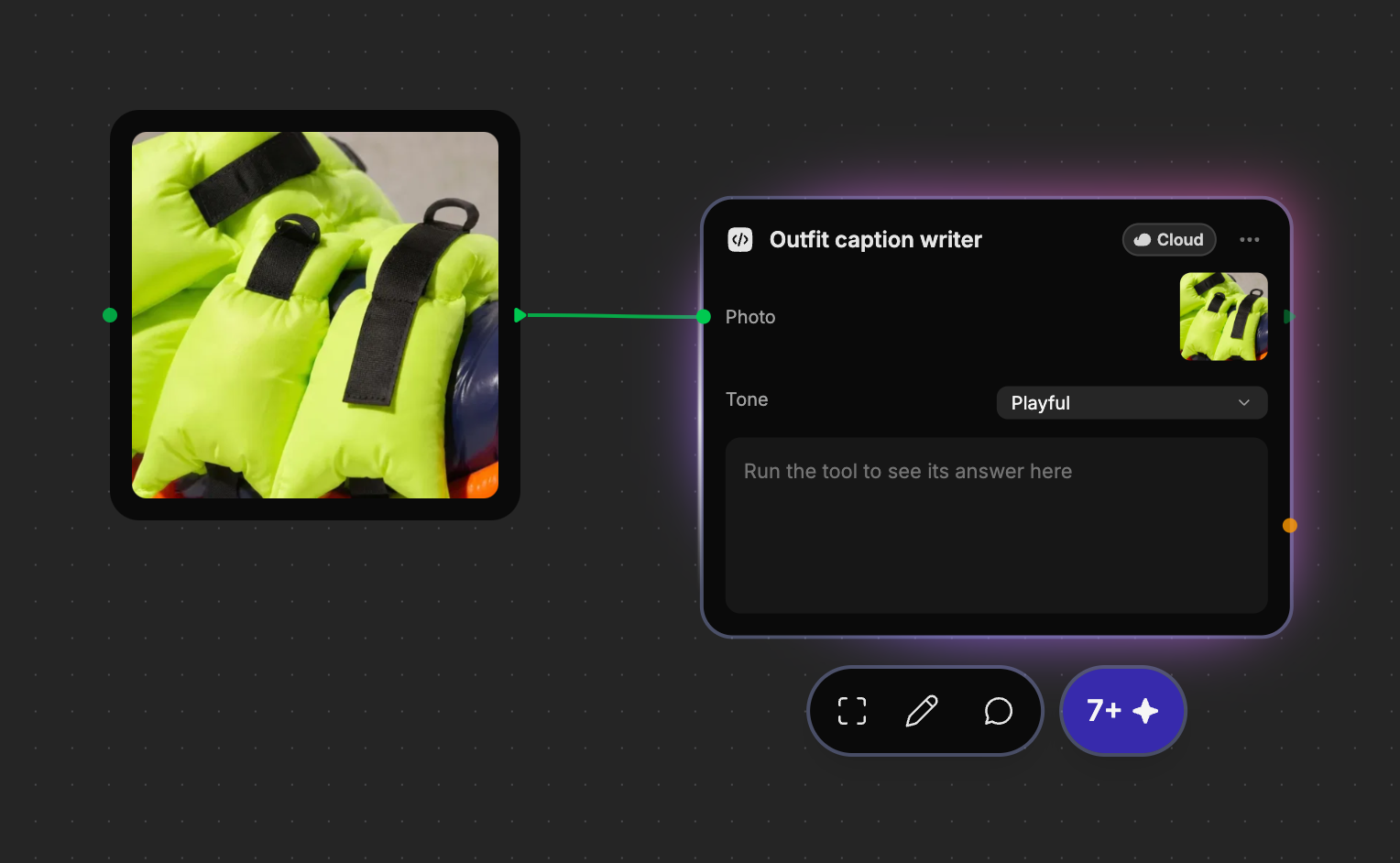
Select the node. The **Run** button in its toolbar shows the minimum
cost, such as `7+`; the plus means a run that makes more AI calls costs
more. Click it, or press `⌘/Ctrl`+`Enter`.
### Read the result [#read-the-result]
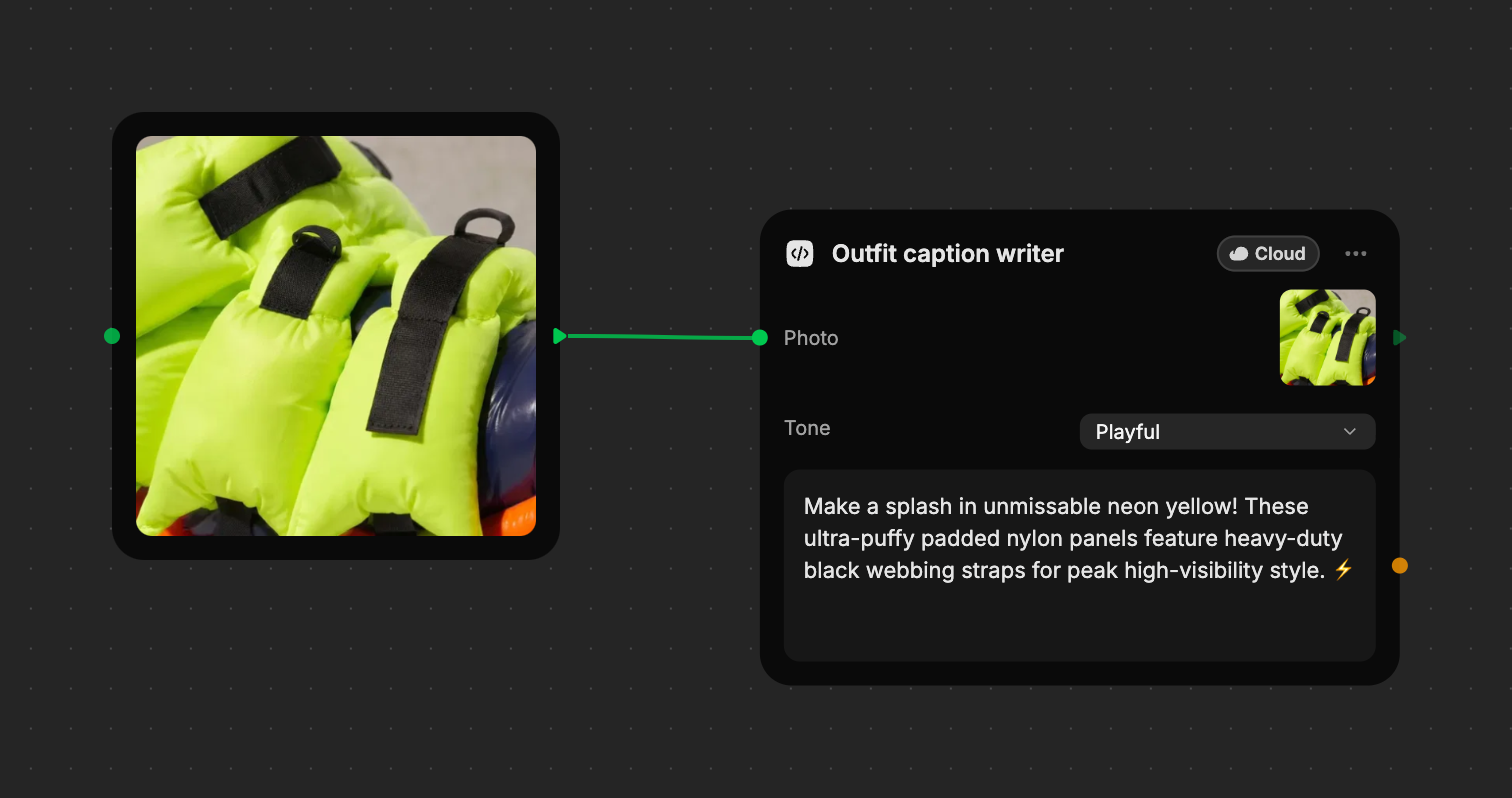
Text and data appear in the result box. An image result is saved to your
Assets automatically.
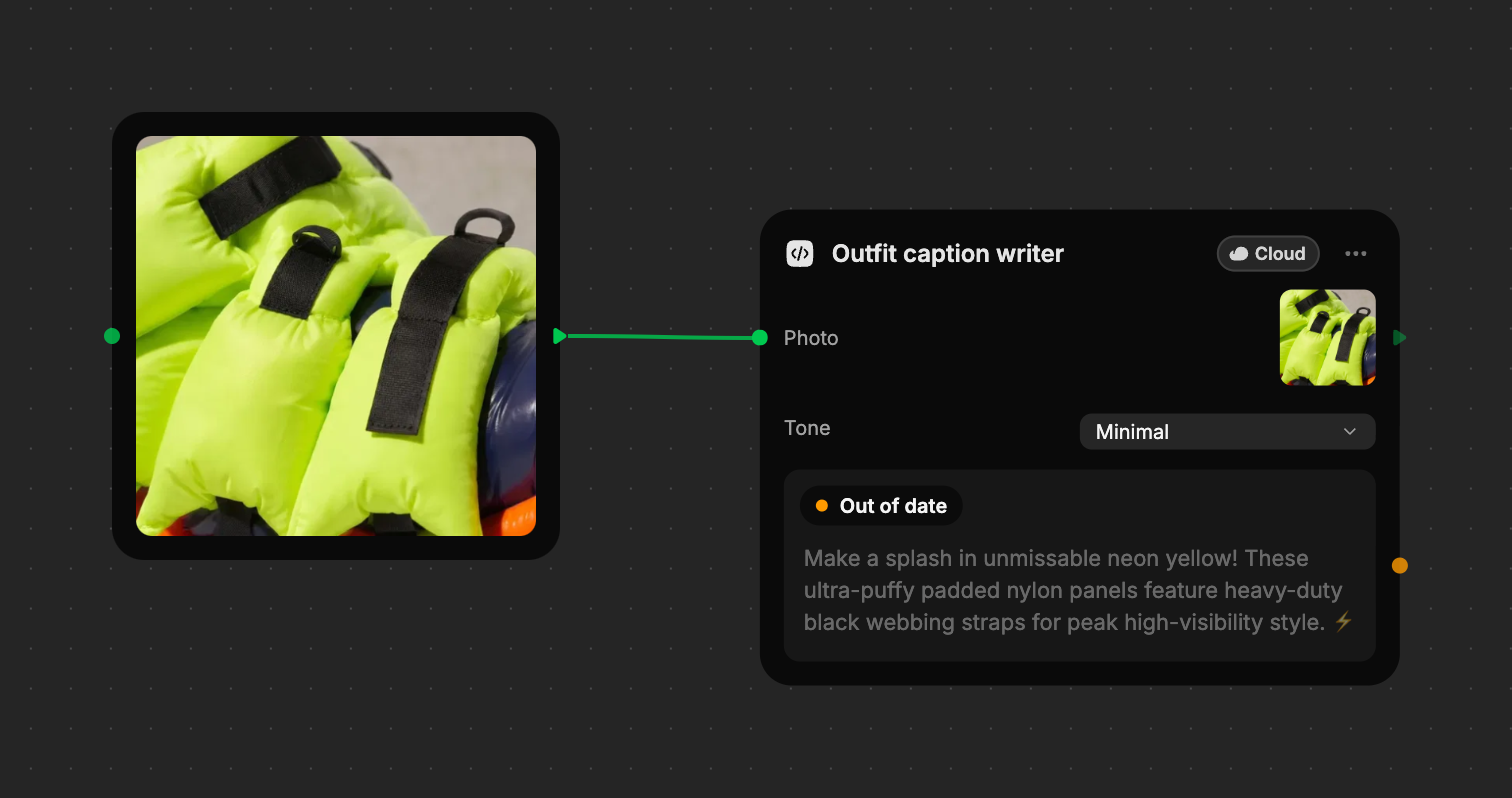
When you change an input or control, the last result dims and shows **Out of
date**. Run again to update it.
Fuser remembers a Cloud tool's last five results. Change a setting back to
values you already ran and the matching result returns straight away, marked
**Up to date**, with no new run and no charge.
## Use a result in other nodes [#use-a-result-in-other-nodes]
Wire a tool's result into any compatible node, such as a generator, a chat,
or another tool. When that node runs, Fuser saves the tool's full-size result
as a file and passes it along. The file is added to your Assets once the run
succeeds.
A Cloud tool's result only flows on while it's current. If it's **Out of
date**, run the tool first.
When you run several nodes at once, built tools run with them: Live tools
hand over their latest result, and Cloud tools run and charge credits as if
you'd pressed **Run**.
## Keep a result [#keep-a-result]
Hover over a tool's result to see its actions in the top-right corner. Save
and drag are for Live image, video, and audio results; a Cloud tool's image
result is already in your Assets.
| Action | What it does |
| --------------------------------------------------------------------------------------------------- | -------------------------------------------------------------------------------------------------------------------------- |
| **Save to assets** | Saves the full-size result to your [Assets](https://docs.fuser.studio/docs/interface/importing-data.md). A check confirms it's saved. |
| **Drag onto the canvas to copy** | Drag the handle onto the canvas to create an Image, Video, or Audio node with the result. The file is saved to Assets too. |
| **Download** | For text and data results: downloads them as a file. |
Saving and dragging the same result share one file, so you won't get
duplicates in Assets.
> [!NOTE] Live results aren't files until you need them
>
> A Live result is recomputed wherever the project is open, so it doesn't fill
> your Assets as you experiment. It becomes a file only when you save it, drag
> it out, or another node uses it.
## What's Next? [#whats-next]
- [Tools library](https://docs.fuser.studio/docs/tools/library.md): Place the tools you've built in any project.
- [Tools in recipes](https://docs.fuser.studio/docs/tools/recipes.md): Package tools with models into a reusable recipe.