# Running recipes (https://docs.fuser.studio/docs/recipes/running)
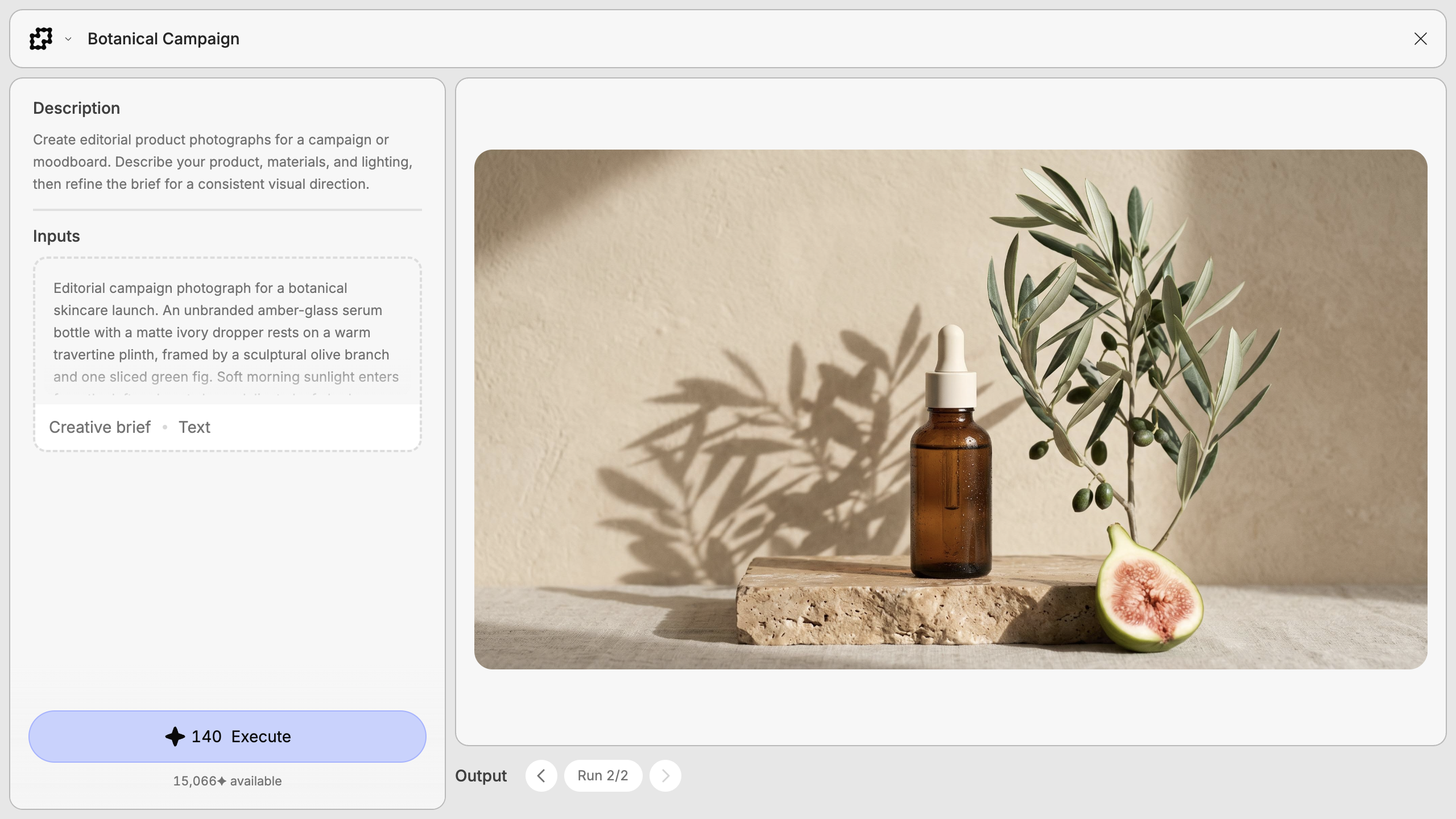
A recipe brings a flow's inputs, execution, and results into one view.
Change prompts, swap reference media, and compare runs here.
## Run a recipe [#run-a-recipe]
Open a recipe from the [Gallery](https://docs.fuser.studio/docs/interface/gallery.md), or click
**Preview recipe** in the recipe panel while building your own.
On your canvas, choose **Enter focus** from the recipe node's menu. This opens
the run preview; **Open recipe** takes you to its internal flow for editing.
### Set your inputs [#set-your-inputs]
Change the example prompt, media, or settings. Each recipe offers its
own controls.
### Check the cost and execute [#check-the-cost-and-execute]
Review the credit estimate beside
**Execute**, then
click it. Fuser checks the inputs and shows progress as it runs.
### Inspect your results [#inspect-your-results]
Inspect the result. For multiple outputs, select a card under **Outputs**.
Change an input and execute again to try another variation.
## Change inputs [#change-inputs]
Inputs include text, number fields, sliders, dropdowns, and switches. Their
options and limits come from the nodes inside the recipe.
For an image, video, or 3D mesh, hover and click **Replace**. Select an item
from **Assets**, find one with **Search assets...**, or **Upload** a file.
Selecting an asset applies it immediately; uploads also accept dropped files.
Audio inputs use the usual media controls.
### Multiple reference images [#multiple-reference-images]
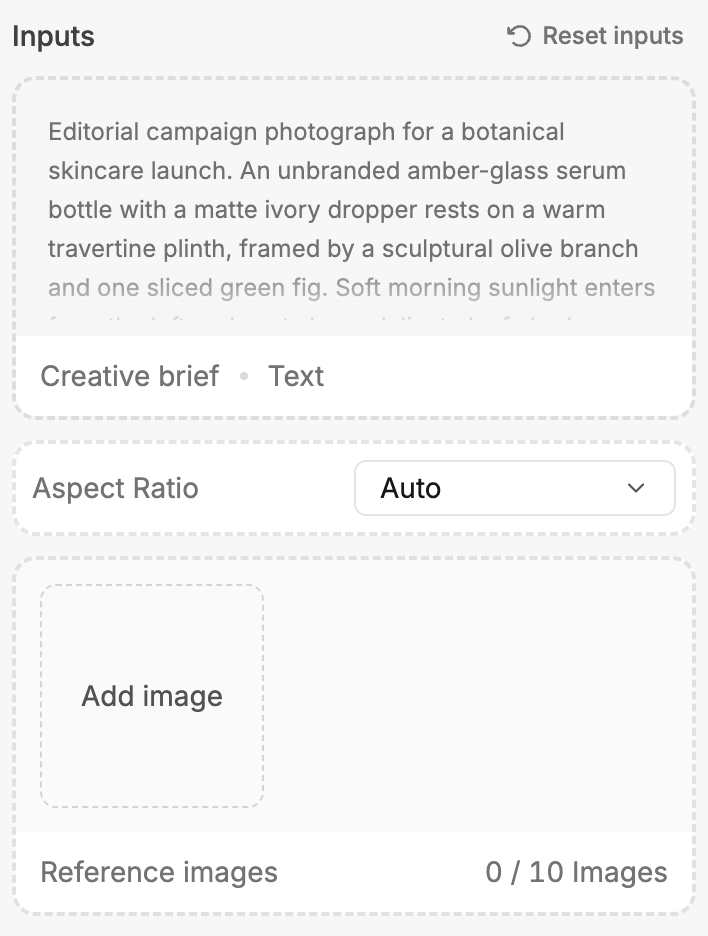
For an input accepting multiple images, use **Add image**, **Replace**, and
**Remove** to manage references. The counter shows the image count and the
model's limit, when known.
### Inputs connected on the canvas [#inputs-connected-on-the-canvas]
**Wired** inputs get their values from connected nodes and are locked in
preview. Change the connected node or disconnect the wire to enter a value.
For other ways to add media, see
[Working with Media](https://docs.fuser.studio/docs/interface/importing-data.md).
### Restore the starting values [#restore-the-starting-values]
Click
**Reset inputs**, then **Reset**, to restore starting values and overwrite
your changes. Connected inputs keep using their wires.
Dashed input borders mark starting values; solid borders mark changes.
## Credits and execution status [#credits-and-execution-status]
**Execute** shows estimated credits: `+` means some costs remain unknown;
`...` means the estimate is pending. Available credits appear below.

Blocker messages explain what to fix. **Uploading…** means media is still
being prepared.
**Insufficient credits** means the known cost exceeds your available balance.
Click **Stop** to cancel an active run. A
failed execution is marked **Run failed**.
## Review outputs and earlier runs [#review-outputs-and-earlier-runs]
Text is formatted, video and audio have playback controls, and 3D outputs
are interactive. Compositor outputs show the rendered image or video.
Use the arrows beside **Run** to browse previous executions. The cards under
**Outputs** switch between results from the selected run.
> [!NOTE] Choosing a run changes the node's output
>
> With editing access to a placed recipe, choosing a compatible earlier run
> sets its results as the node's outputs, including for connected nodes.
> Return to the latest run or complete a new execution to use the newest results.
Older runs remain viewable after the output layout changes. **Not in this
run** marks missing outputs. Return to the current view to execute when prompted.
### Keyboard navigation [#keyboard-navigation]
| Key | Action |
| ----------------- | --------------------------------------------------------- |
| `Escape` | Close the preview. |
| `←` / `→` | Browse runs, or switch outputs when there's only one run. |
| `Enter` / `Space` | Select a focused output card. |
When you're typing or using an input control, those keys stay with the control.
## What's Next? [#whats-next]
- [Inputs and outputs](https://docs.fuser.studio/docs/recipes/inputs-and-outputs.md): Choose the controls and results your recipe exposes.
- [Editing recipes](https://docs.fuser.studio/docs/recipes/editing.md): Open the flow inside a recipe and make it your own.
- [Publishing and versions](https://docs.fuser.studio/docs/recipes/publishing-and-versions.md): Publish your changes and manage the versions used on your canvases.