# Inputs and outputs (https://docs.fuser.studio/docs/recipes/inputs-and-outputs)
Inputs are controls such as a prompt, reference image, or aspect ratio.
Outputs are results such as an image or text. You choose what to expose;
everything else stays inside the flow.
## Connect the interface [#connect-the-interface]
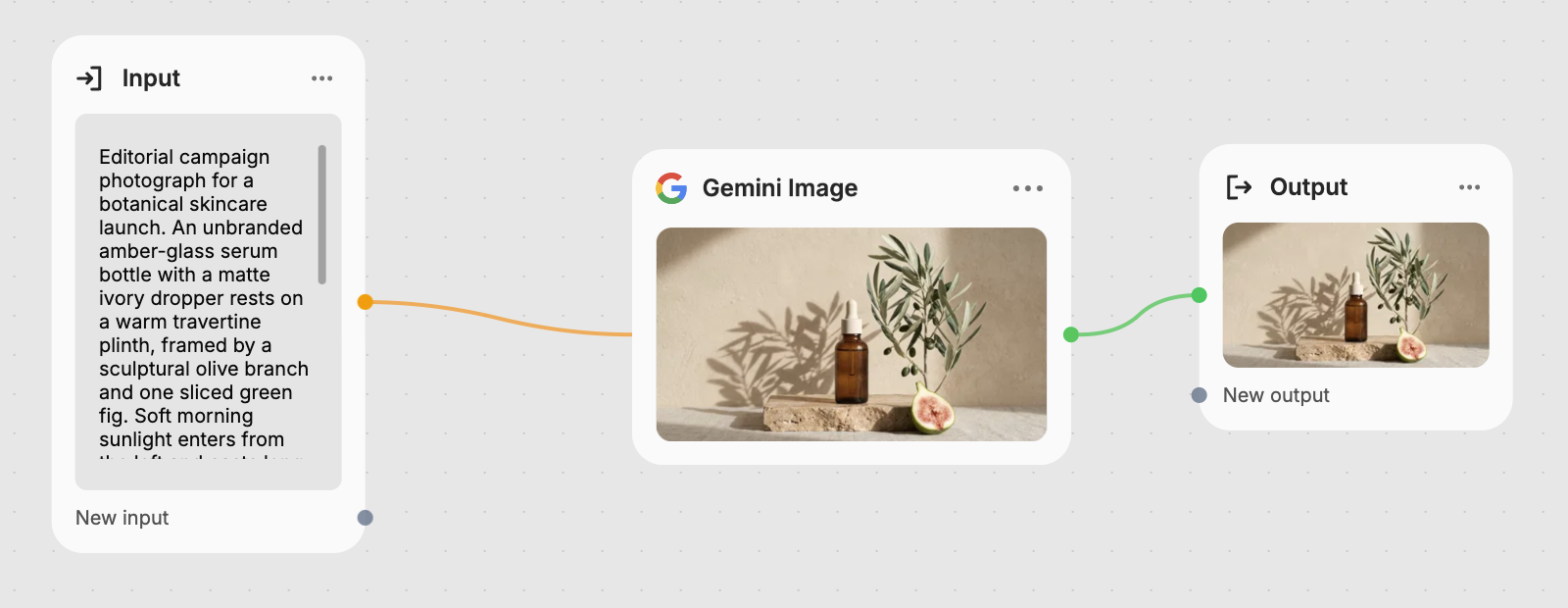
Select the recipe and click **Open recipe**, or press `E`. Inside, **Input**
sends values into the flow; **Output** collects the results it returns.
### Add an input [#add-an-input]
Drag **New input** on **Input** to a property, such as a model's prompt.
Fuser creates a named control for it.
### Add an output [#add-an-output]
Drag an internal result to **New output** on **Output**. Repeat for
each result you want to expose.
### Try the interface [#try-the-interface]
Set useful starting values, then click **Preview recipe** and run it.
Check the controls and results; return to adjust the wiring.
A new input inherits the connected property's control: dropdown choices,
slider range, or media type. One input can feed several compatible properties
that should share a value.
Connect inputs through the working nodes. A direct connection from
**Input** to **Output** isn't supported.
## Name and arrange controls [#name-and-arrange-controls]
The panel lists **Inputs** and **Outputs** in their display order.
Click a row's caret
to expand its name and description fields.
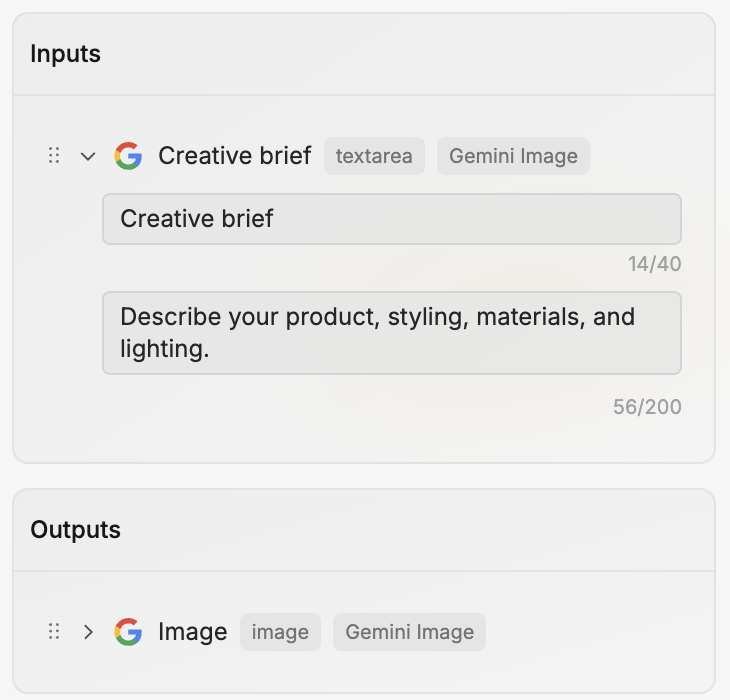
Name the choice or result: “Reference image” or “Finished portrait.” Use
descriptions to explain what to provide. Names allow 40 characters;
descriptions allow 200.
| Control | What it does |
| ----------------------------------------------------------------------------- | -------------------------------------------------------- |
| Drag handle | Reorders the input or output. |
| **Zoom to node** | Takes you to its Input or Output node. |
| **Remove** | Removes the exposed input or output and its connections. |
To change a control's type or allowed values, change its connection.
## Set useful starting values [#set-useful-starting-values]
New inputs copy the connected property's current value. Edit it on **Input**
or in **Preview recipe** to set the starting value.
Newly placed recipes use these saved values. A sample image and prompt, for
example, let someone try a portrait recipe before adding their own reference.
Run the flow to produce example outputs before publishing. Required inputs
and outputs need values; `0` and an off switch count as values.
On a placed recipe, **Reset inputs** restores its version's starting values. See
[Running recipes](https://docs.fuser.studio/docs/recipes/running.md) for input controls and reset behavior.
## Make a media input optional [#make-a-media-input-optional]
Optional media can be left empty: a model might accept a reference image
but also work from text alone.
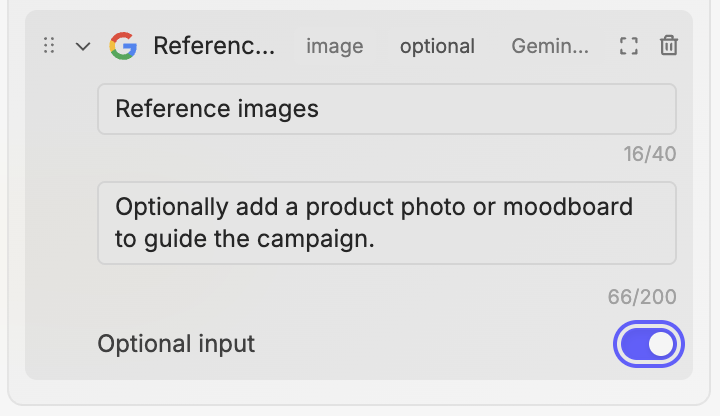
Expand the row and enable **Optional input**. It's available for image, video,
audio, and 3D mesh when every connected property accepts an empty value,
except connections into another recipe.
If you reconnect an optional input to a required property, turn off
**Optional input** or rewire it before saving or publishing.
## Choose the right controls and results [#choose-the-right-controls-and-results]
Recipes support text, number and seed fields, sliders, dropdowns, switches,
and media. Multiple-image inputs offer **Add image**, **Replace**, and
**Remove**. Other types display as attachments.
Saving or publishing requires at least one output. Expose useful results:
an image, a caption, or related outputs. A Creative Code sketch must be the
only output when included.
### Reconnect when replacing a node [#reconnect-when-replacing-a-node]
When replacing an internal node, reconnect existing controls where they
serve the same purpose. Disconnecting leaves the control available;
**Remove** deletes it and its connections.
Reusing controls helps preserve connections on canvases using the recipe. See
[Publishing and versions](https://docs.fuser.studio/docs/recipes/publishing-and-versions.md).
## What's Next? [#whats-next]
- [Creating recipes](https://docs.fuser.studio/docs/recipes/creating.md): Turn a working selection into a reusable recipe.
- [Running recipes](https://docs.fuser.studio/docs/recipes/running.md): Test the interface with different inputs and compare the results.
- [Sockets and connections](https://docs.fuser.studio/docs/interface/sockets.md): Learn how values travel between nodes on the canvas.