# Editing recipes (https://docs.fuser.studio/docs/recipes/editing)
Open a recipe to change prompts, swap models, add steps, or simplify its
controls.
Your working flow is separate from the saved recipe. Preview your changes,
then save or publish a version for placed recipes to use.
## Open the recipe [#open-the-recipe]
Click **Open recipe**, or select the node and press `E`. The canvas shows its
internal flow; the right **Recipes** panel contains its details, **Inputs**,
and **Outputs**.
With editing permission, you can change the flow and resume edits later.
Otherwise it opens as **View only**, with **Make a copy to edit** available.
## Change the flow and its controls [#change-the-flow-and-its-controls]
Edit nodes and connections as on a project canvas. In Botanical Campaign,
you might refine the art direction or add a step after image generation.
Connect **New input** on **Input** to an internal input to expose a control.
Connect an internal result to **New output** on **Output** to expose a result.
Expand a panel row to edit its name and description; drag its handle to
reorder. Hover for **Zoom to node** and **Remove**. Where supported,
**Optional input** allows running without that value.
After removing a control, check the connections and test before saving. See
[Inputs and outputs](https://docs.fuser.studio/docs/recipes/inputs-and-outputs.md) for wiring options.
## Edit the recipe details [#edit-the-recipe-details]
Use **Name** and **Description** to explain the result and required inputs:
“Create a botanical campaign image from a creative brief.”
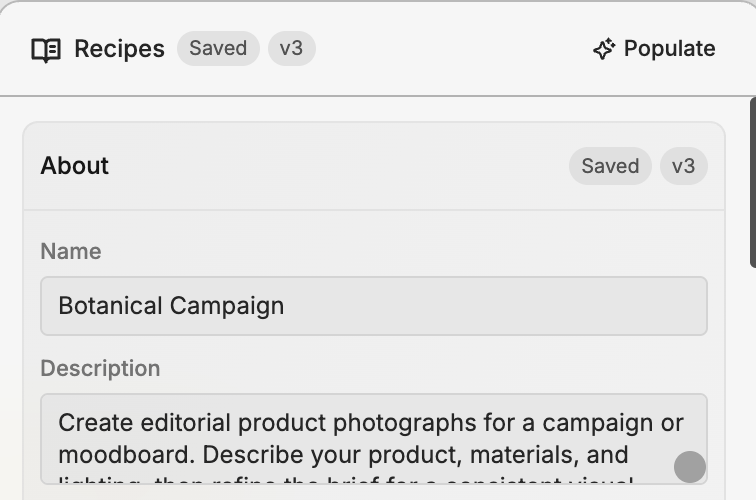
**Populate** suggests a name, description, categories, tags, and input/output
labels and descriptions from the flow. Review them before saving.
You can also update:
* **Thumbnail** — **Upload media** or **Replace** the preview image or video.
* **Categories** — choose up to three.
* **Tags** — select or create up to five.
Use **Save changes** or **Update recipe** to save these details. They're
shared across versions, so older versions also show the updated details.
## Preview and save your changes [#preview-and-save-your-changes]
With a name, description, and at least one output, click **Preview recipe**
to try the interface. Change inputs and **Execute** to check results;
`Escape` returns to the editor.
Use **Save changes** for unpublished recipes or **Update recipe** for published
ones. **Up to date** means no pending changes. Version status shows **Unsaved
changes**, **Saved**, or **Published**.
Saving flow changes creates a version. You then choose which placed recipes
use it; see [Publishing and versions](https://docs.fuser.studio/docs/recipes/publishing-and-versions.md).
## Make a copy or unpack the nodes [#make-a-copy-or-unpack-the-nodes]
Choose what you want to work with:
| Action | Result |
| ----------------------------- | ---------------------------------------------------------------------------------------- |
| **Open recipe** | Inspect the recipe's internal flow, or edit it when you have permission. |
| **Make a copy to edit** | Create your own reusable recipe from a view-only recipe. Your copy has its own versions. |
| **Detach into your own copy** | Create an independent recipe and switch the selected canvas node to use it. |
| **Unpack into nodes** | Replace this canvas instance with its internal nodes, grouped under the recipe's name. |
### Keep a reusable recipe [#keep-a-reusable-recipe]
In **View only**, **Make a copy to edit** places a copy beside the original
in your project, or creates a project if needed. Open your copy to edit
without changing the original.
**Detach into your own copy** in the selected node's properties keeps it in
place and switches it to your independent recipe.
### Work directly with the nodes [#work-directly-with-the-nodes]
Choose **Unpack into nodes** from the node's context menu. Its selected
version expands into a group, preserving connections to the surrounding flow.
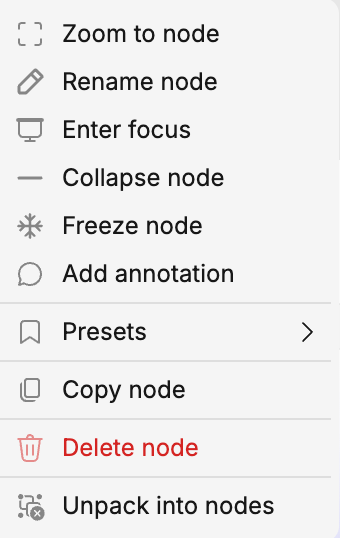
Edit those nodes directly without changing the source recipe. Undo returns
the group to a recipe node in one step.
## Move between recipes and your project [#move-between-recipes-and-your-project]
The breadcrumb trail shows your project and opened recipes. Click an earlier
name to return. Select a nested recipe and press `E` to open it; with no
recipe node selected, `E` goes back one level.
Leaving with unsaved flow or input/output changes offers **Save & leave** or
**Update & leave**, **Discard & leave**, and **Keep editing**. Save recipe
details before navigating away too.
Archived recipes open read-only. Owners can **Unarchive to edit**; others
can make a copy.
## What's Next? [#whats-next]
- [Inputs and outputs](https://docs.fuser.studio/docs/recipes/inputs-and-outputs.md): Refine the controls and results available outside your recipe.
- [Running recipes](https://docs.fuser.studio/docs/recipes/running.md): Try the interface and compare results from different inputs.
- [Publishing and versions](https://docs.fuser.studio/docs/recipes/publishing-and-versions.md): Save versions, publish changes, and update placed recipes.